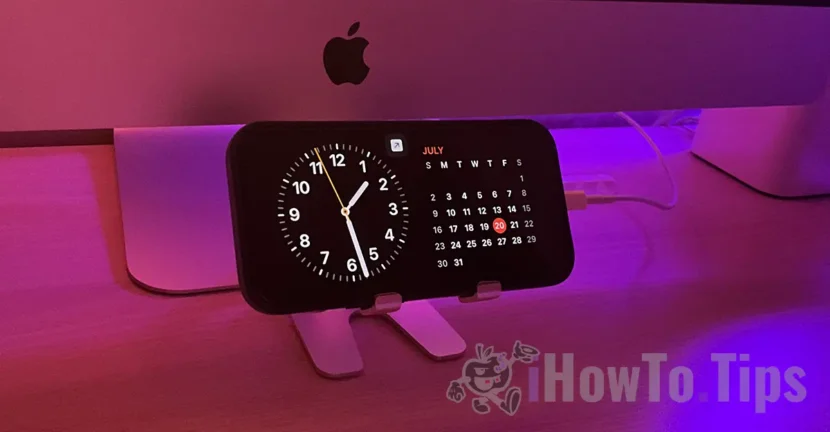

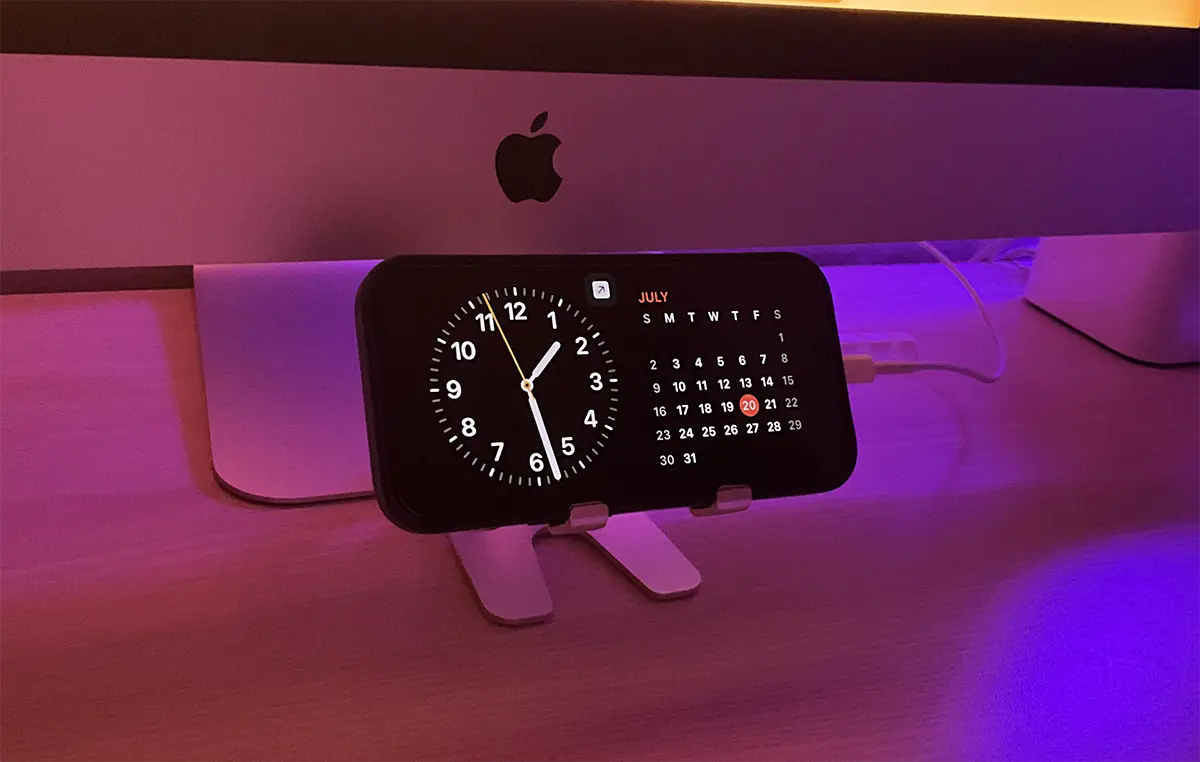
Apple has entered with the operating system iOS 17 can the most interesting feature from this major upgrade. Standby mode for iPhone, which allows the device to display a number of widgets on the screen when charged on the bedside table or on the desk.
This new way for iPhone seems to be a continuation of the option Always-On through which the iPhone 14 Pro or iPhone 14 Pro Max screen can be left permanently, in a Intelligent way - The screen will close everything when the iPhone is in your pocket, left on the table with the screen down or when there is no one in its vicinity.
Table of Contents
How do you activate and customize Standby mode for iPhone
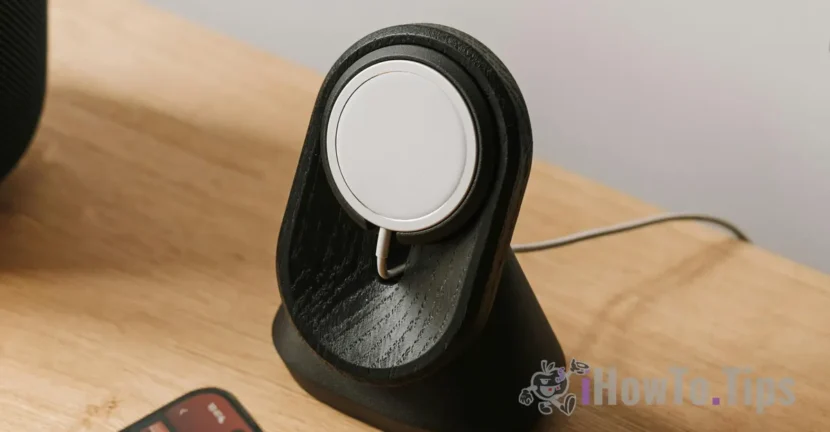
Returning to standby mode, it can be activated and customized only when iPhone is connected to the charger (cable or wireless magsafe) and is seated in Landscape mode - in a horizontal position. The exit from the standby mode will be done as soon as the disposition is disconnected from the power source or is changed from the horizontal position.
IPhone models compatible with standby mode
Standby mode can be activated on all iPhone that supports iOS 17. So the standby mode is not compatible with iPhone X, iPhone 8 Plus or older models.
But there is a feature. Standby mode will keep the screen open permanently only on iPhone 14 Pro or iPhone 14 Pro Max. Models that support the feature ”Always-On"Through which the screen can be kept permanently open with low energy consumption. For the other iPhone, the screen will open in Standby mode only when touched.
How do you activate the standby mode for iPhone?
Standby mode can be activated from: Settings > StandBy. Once enabled standby mode, several configuration options will be opened.
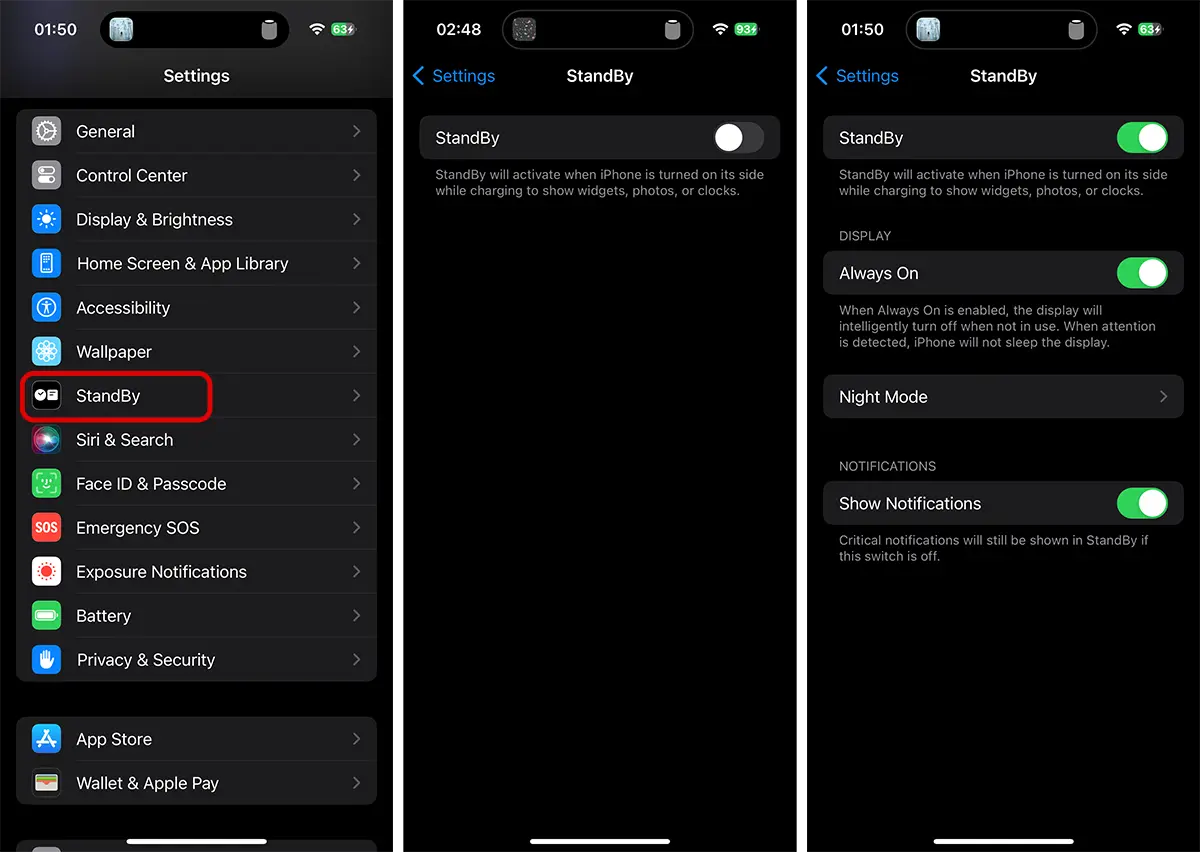
After activation, the user can choose that the screen remains permanently open (Always On) then as iPhone is in standby mode. This is an intelligent way as with the option ”Always-On"For the display. The screen will be open in standby mode only when movement will be detected around the iPhone.
option Night Mode It allows customizing the standby mode for night hours, when iPhone is left on the bedside table during sleep. Widgets will have a dim light when Night Mode is activated. In addition, the screen opening in Standby mode can also be activated when the night is detected.
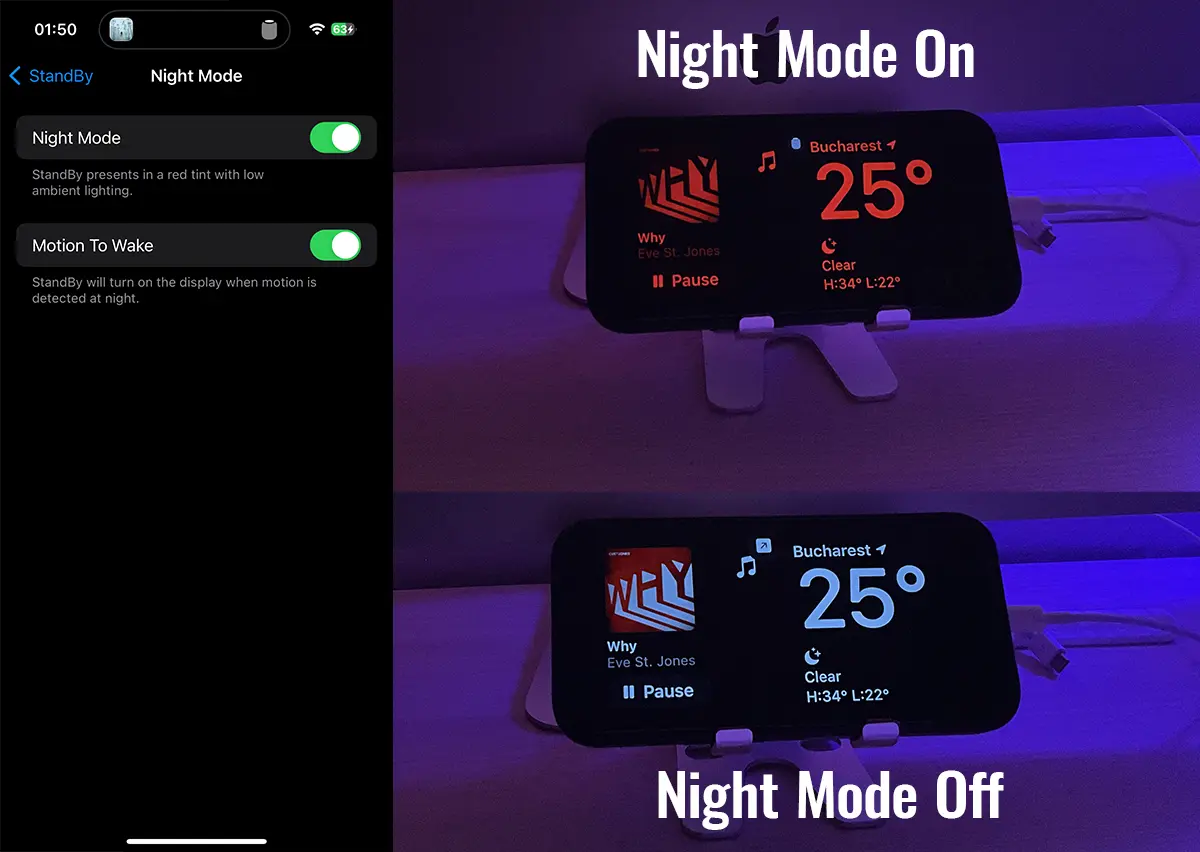
Also from the standby mode options for iPhone, the user can choose whether or not notifications. Disabling notifications will be partial. Important notifications will be displayed even if the option ”Show Notifications"It is disabled.
If you have the module activated Sleep During the night then notifications will comply with the rules of this Focus.
Widgets customization in standby mode for iPhone
The coolest feature of this mode is that it can be customized with many interesting widgets (and is currently in beta!). Standby mode for iPhone supports useful widgets and with an interesting design.
They can be added to the standby widget mode with watches, calendar, reminder, notes, shortcuts by which you can control the smart lights in the house, weather condition, pictures, battery status, etc. All this with different forms of design and dimensions.
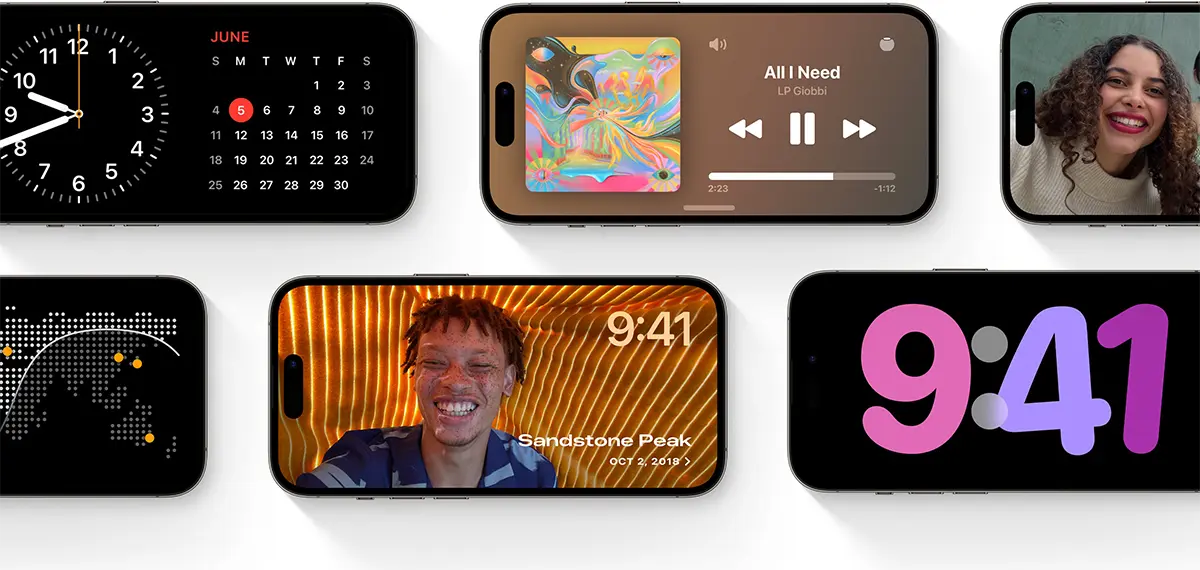
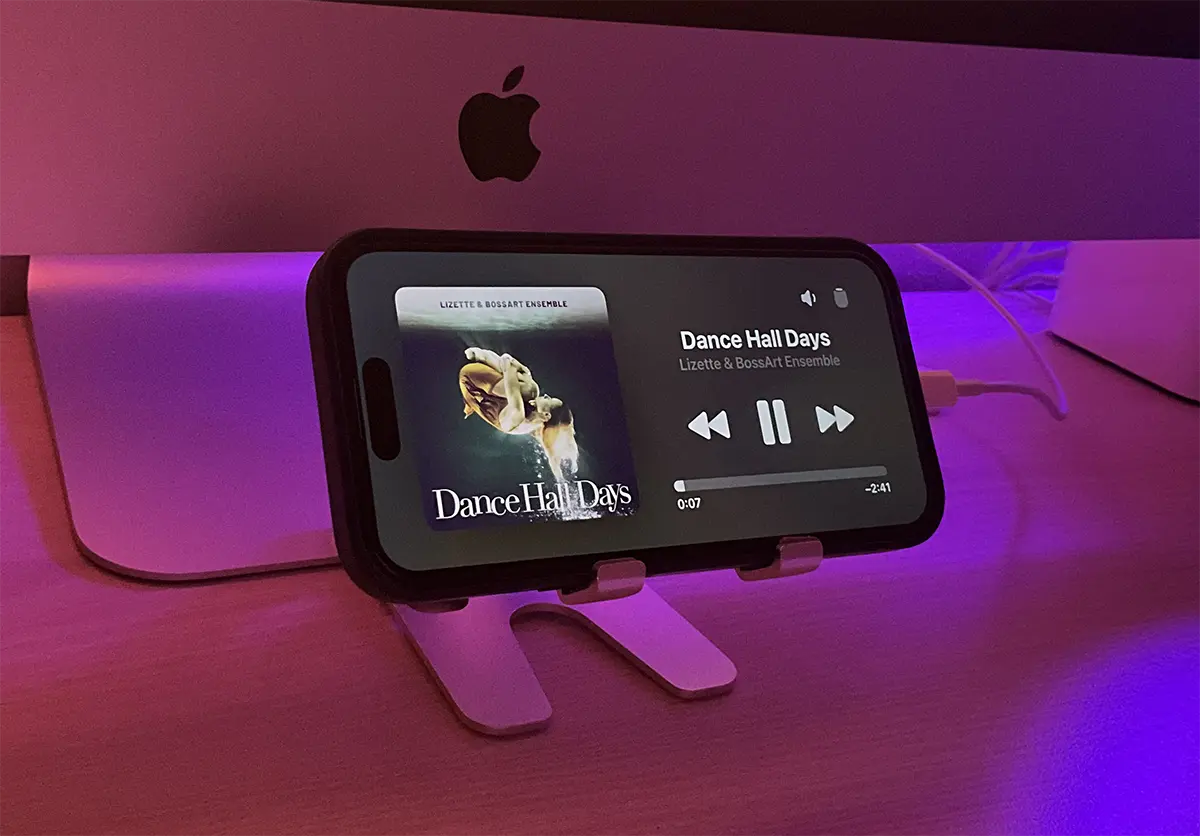
One of the most interesting widgets of the standby mode is Apple Music. A whole screen player from which you can control music very easily, whether it is on the iPhone or on the Homepod speaker.
How do you add new widgets to the Standby Mode screen?
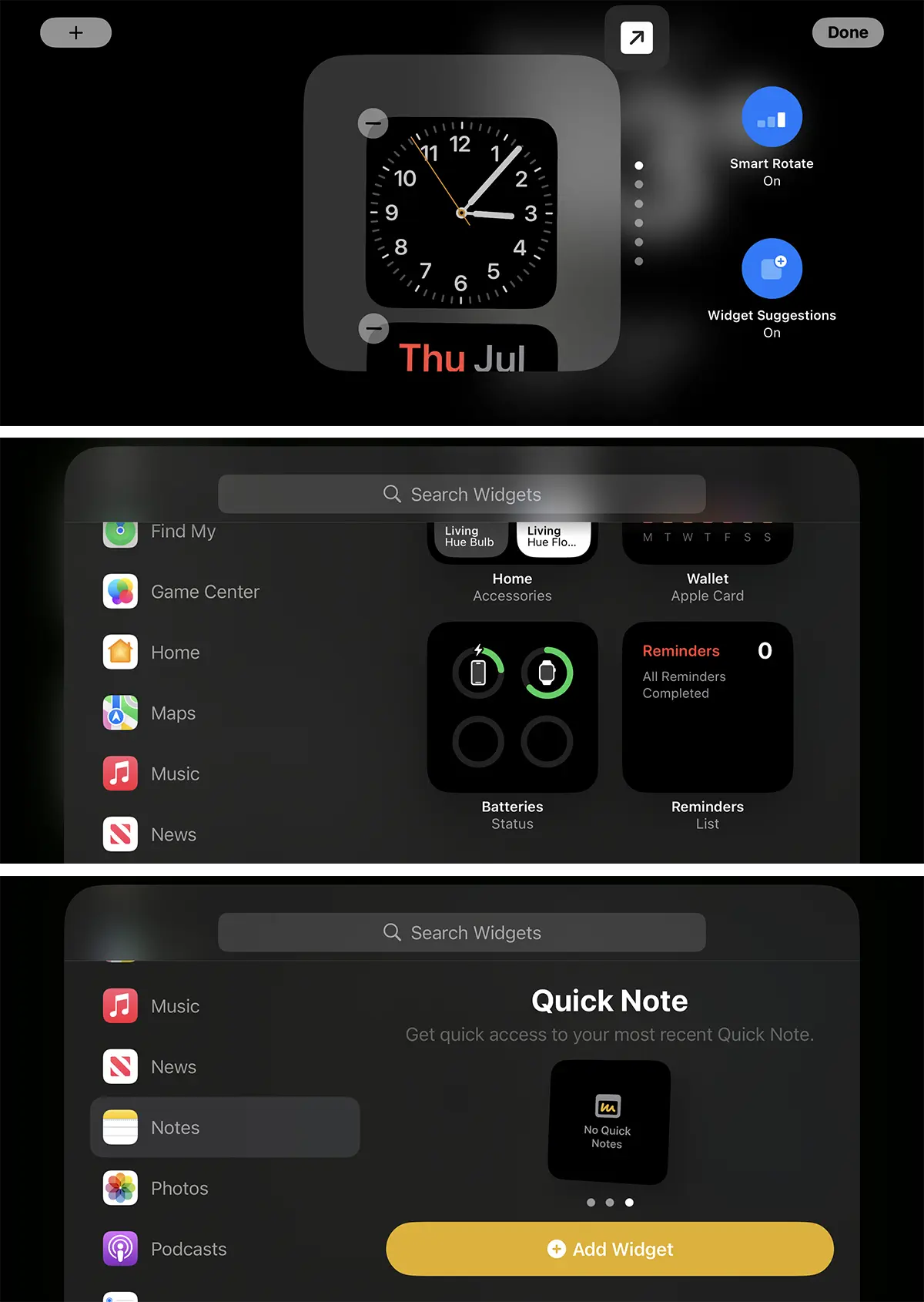
To change the standby screens for iPhone, all you have to do is slide horizontally or vertically to change the already added widgets. If you press the area on which standby widgets are, standby Widgets customization options appear. You can change the design of the widgets, you can remove them or add new ones.
For example, if you want to change the pictures that appear in the WDget with photos, hold on the screen and then select what kind of pictures you want to appear in the widget. Persons, landscapes of nature, cities or pictures from a personal album existing in the Photos app.
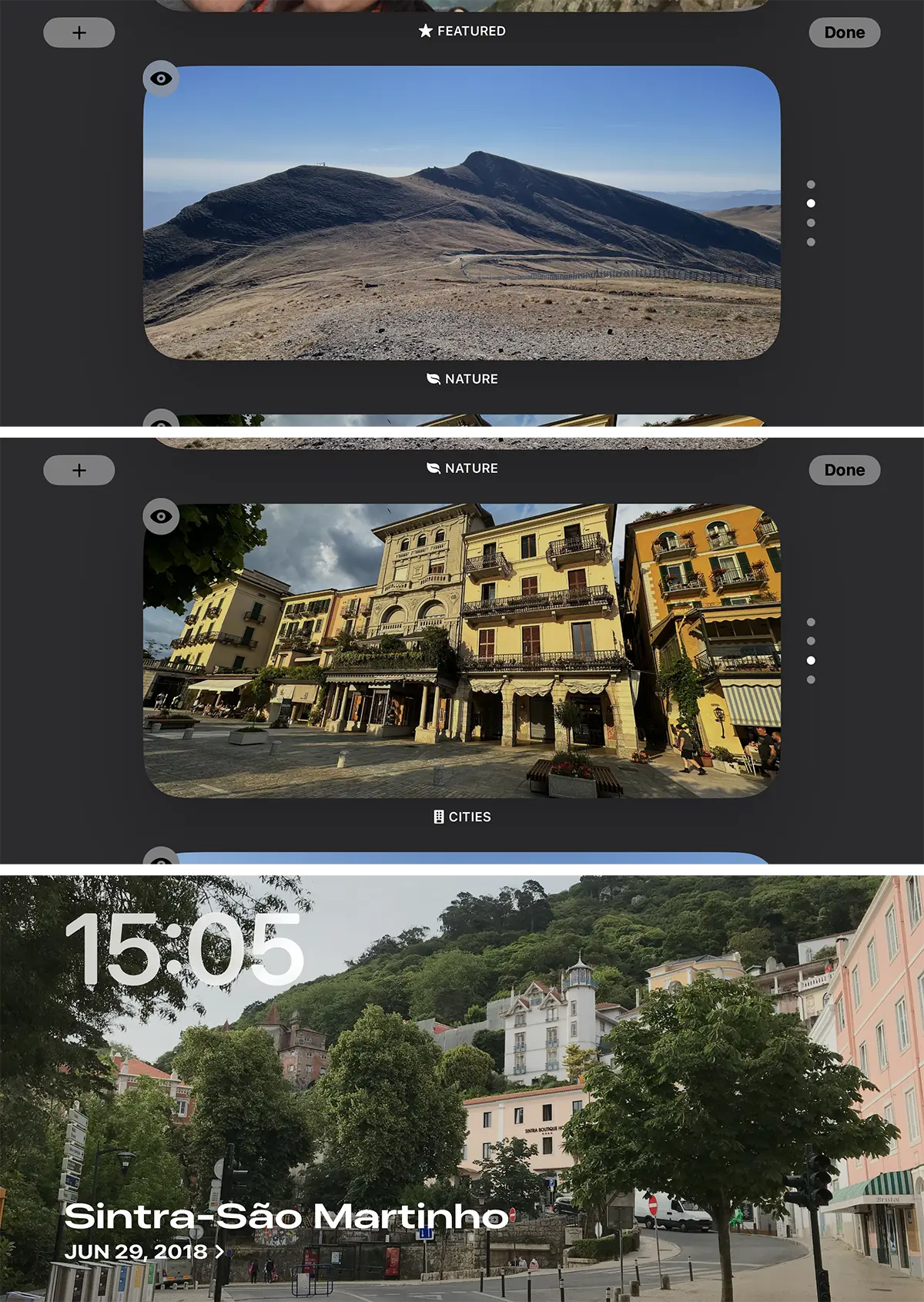
Two types of Widgets display for Standby mode are supported: on the whole screen, or divided by half (where two widgets can be added).
As I said before, every widget or widget area supports customization.
Related iOS 17: How do you protect your eyes with iPhone Screen Distance
In conclusion, with the new feature standby mode for iPhone, if you have not bought a support for iPhone so far, is the time to do it.