

Windows Photo Viewer is present on Windows operating systems, since the time XPto. With a simple interface and a minimum resource consumption, it is the easiest utility in which we can open the pictures and start a slides how. In the same time, Windows Photo Viewer doesn't give us too much Options in terms of changing / editing a picture. We can only rotate an image or delete it. The purpose of the utility is that of quick visualization of the image files (.jpg, .png) from a folder.
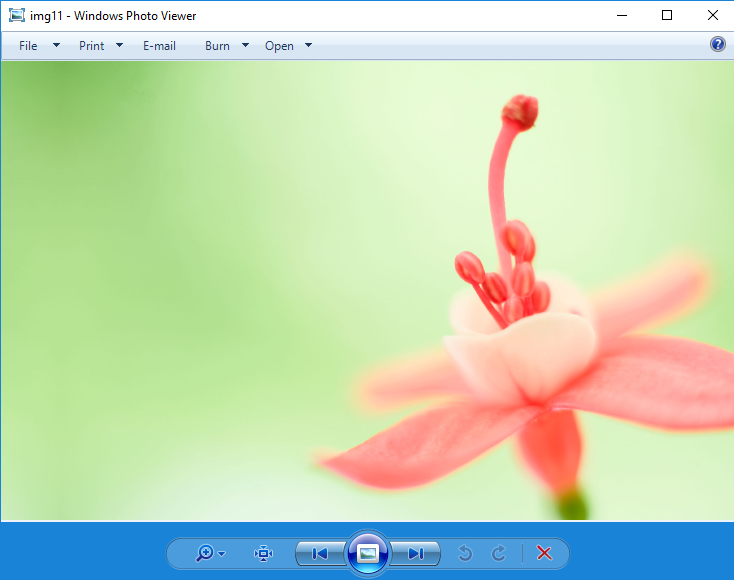
With the launch of Windows 10, Microsoft has given up this utility and offered users other options in which the images can be opened and edited. The "Photos" application of Windows 10, is the replacement "Windows Photo Viewer". Another interface and several primary editing options for images.
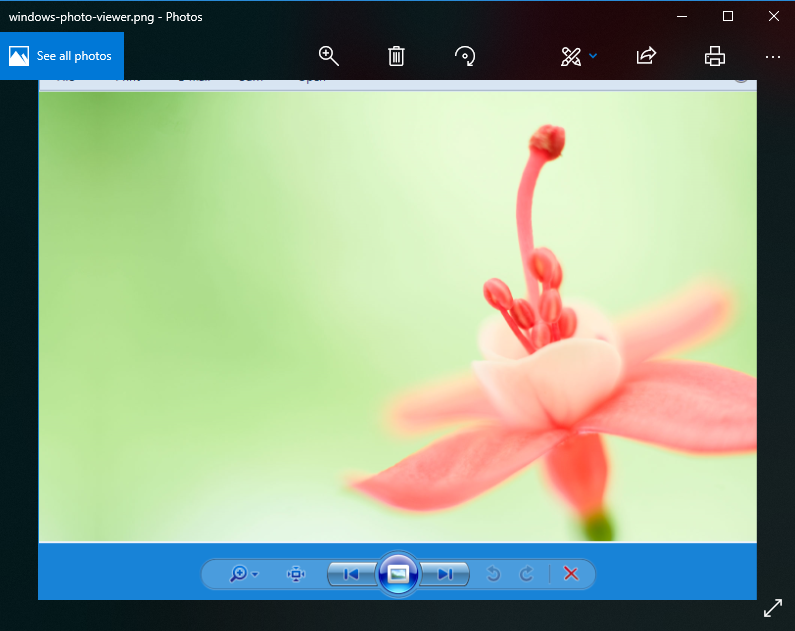
If you want to use Windows Photo Viewe pe Windows 10, we have good news. Although the utility no longer appears in the list of applications When we want to open an image, Microsoft He did not eliminate him from the operating system. Is blocked / hidden from registers (Windows Registry) and can be activated very simply by anyone who wants.
Activare Windows Photo Viewer pe Windows 10
1. Download and unzip: Enabled-Windows-Photo-Viewer-Windows-10
2. Inside the archive, do double-click on the "Windows Photo Viewer on Windows 10" file,
3. Click "Yes" to allow running in the UAC and Click "Yes" to allow the registers to enter. Registry Editor.
4. Click "OK" to confirm the change.
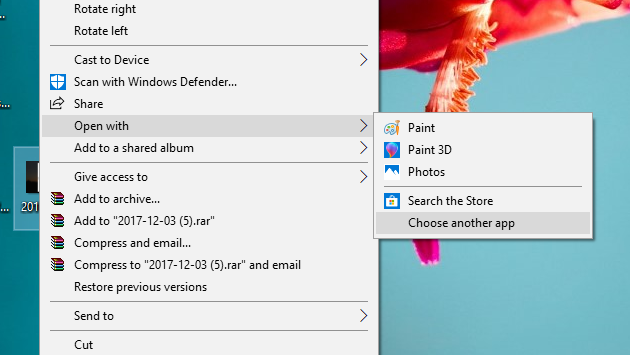
After this step, select a picture. JPG or .PNG, click-right on it, and in "Menu context" (the menu that opens), go to "Open with” > “Choose another app“.
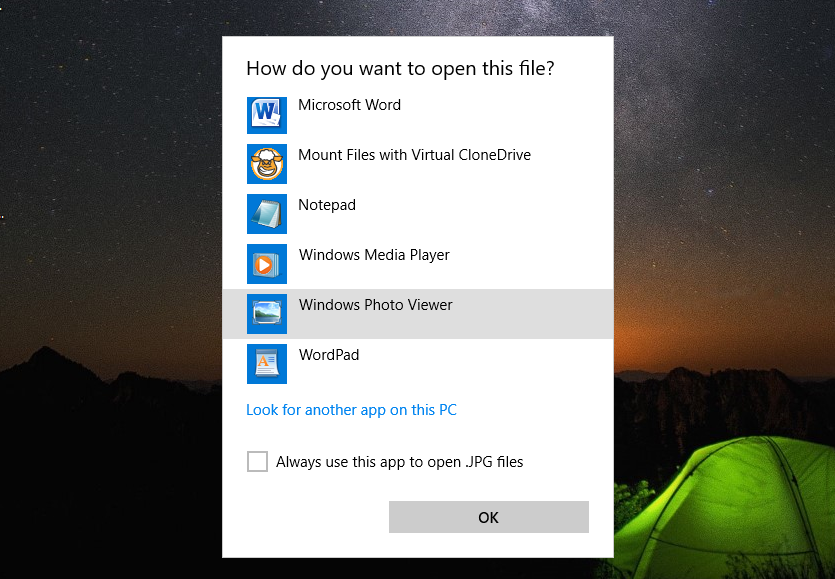
A list of compatible applications will be displayed to open the type of file selected. Click on "More Apps" and run the list to Windows Photo Viewer.
Select with a single click ”Windows Photo Viewer"Then tick"Always use this app to open .PNG files"
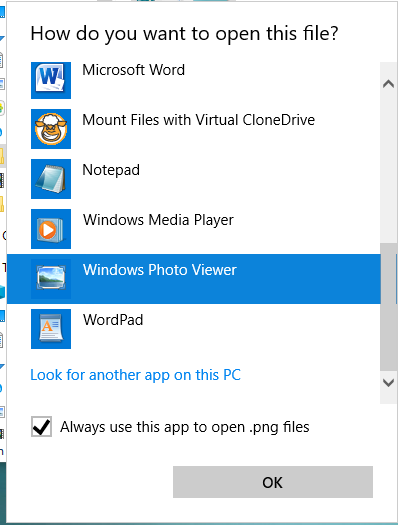
Dupa ce faceti click pe “OK”, toate fisierele .png se vor deschide automat in Windows Photo Viewer, fara a mai fi nevoie sa selectati de fiecare data aplicatia.


































Hello! (Runs MS EDGE in Win 10. When I exported pictures from LR or PS and then made them to .jpg I want to see them before I send them by email.)
Have tried to follow your instructions, unfortunately without success. After "Enable Windows Photo Viewer on Windows 10" 1 t o m 4, I do not manage to find where I choose image.jpg. Grateful for help.
“Fyodor”
doesn't work. Added to the register, but still lack. Windows 10 pre -installed on the Lenovo Legion computer. Some massacre. As if I knew that this W10 is such a bit, I wouldn't buy this computer in my life. Gates, give away Mendo money!
Why is this all pseudoscientific lecture a beaming on FotoViewer? Standing, getting lost, instead of writing a short and animal how to turn it on !!!
I skip this unnecessary unnecessary "lecture" not on the subject, in this article. On my computer it was enough to download the link that the Lord has explain and photo viewer showed himself on the list: "show more application".
Dear I want the photo viewer in Windows 10 I can't get it on, I don't use any other and no one helps you I hope?
Works! Dry the ace rye 😉
Thank you very much!
I knelt all day at Rudy, hehe.
Thank you.
Well, finally there is a good program for browsing photos ... how much I did not curses on the photo program on Windows 10 ... There is nothing like an old good Windows Photo Viewer
Thank you friend. You just helped, nothing (or whoever) was asked in return. May God bless your life!
Show! It worked perfectly!
Thank you very much!
Thank you very much 🙂
Thank you very much for the Windows Photo Viewer Pe Windows 10. It Works !!
Thank You so much