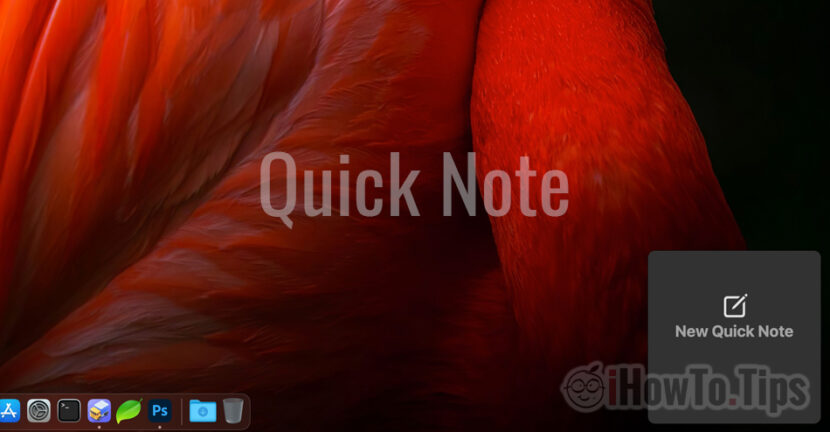

macOS Monterey It came with many new features, both at the level of the operating system itself and in the applications developed by Apple and which we find installed by default on Mac.
One of these, which came with new features is the Notes application. I talked in an article about How can we use Tags and Quick Notes In the new version of Macos Monterey.
Characteristic Quick Note It has the role of helping users to access the field faster where notes can be saved, without the need to open the Notes application. By simply crossing the cursor in the lower right -hand corner of the screen, the new field for fast signs will open in the application Notes.
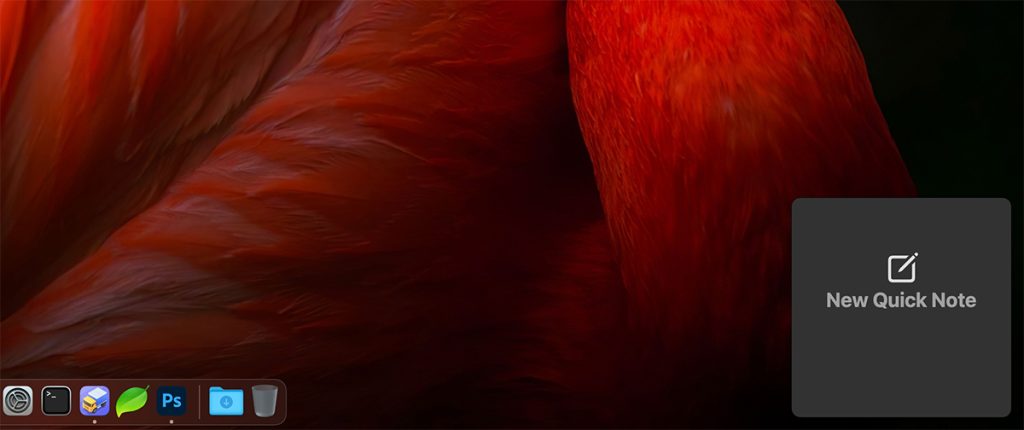
It is not a good idea how Apple thought of quick access to this feature of Macos Monterey. If we have an open application in full screen, and that application has order buttons on the bottom right, then there is a possibility to launch Quick Notes without wanting this.
The simplest way to prevent the opening of Quick Notes when passing the cursor through the right-side of the screen, is either to disable this whole feature or make it launch from the screen area.
Quick Notes is launched by feature ”Hot Corners"A macos. This is not new, but until Macos Monterey, Apple had not added any application to launch the cursor through a corner of the display.
Table of Contents
How do we disable quick notes from the bottom right corner on Macos Monterey?
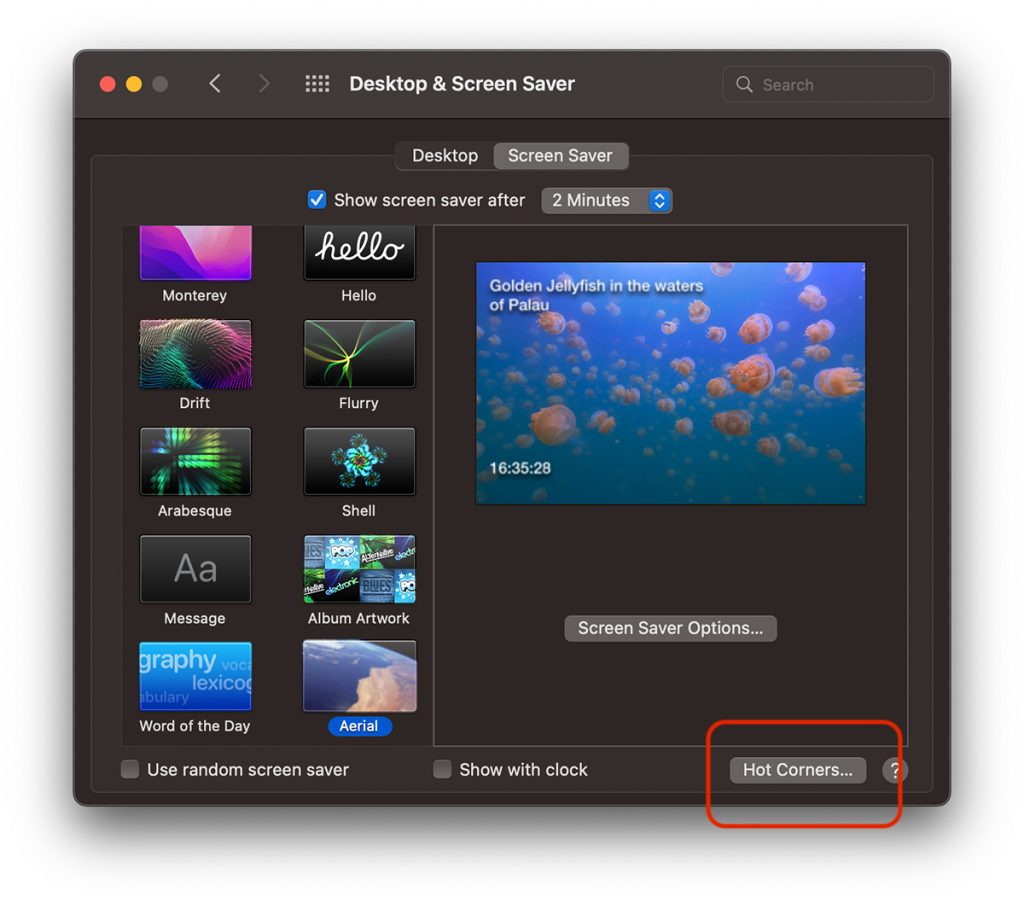
1. Mergem la setarile de personalizare ale “Hot Corners”. Accesam “System Preferences” → “Desktop & Screen Saver” → tab-ul “Screen Saver”, apoi click pe butonul “Hot Corners…”.
2. for the lower right corner instead of "Quick Note"We will select"-"to cancel any action when passing the cursor through that area.
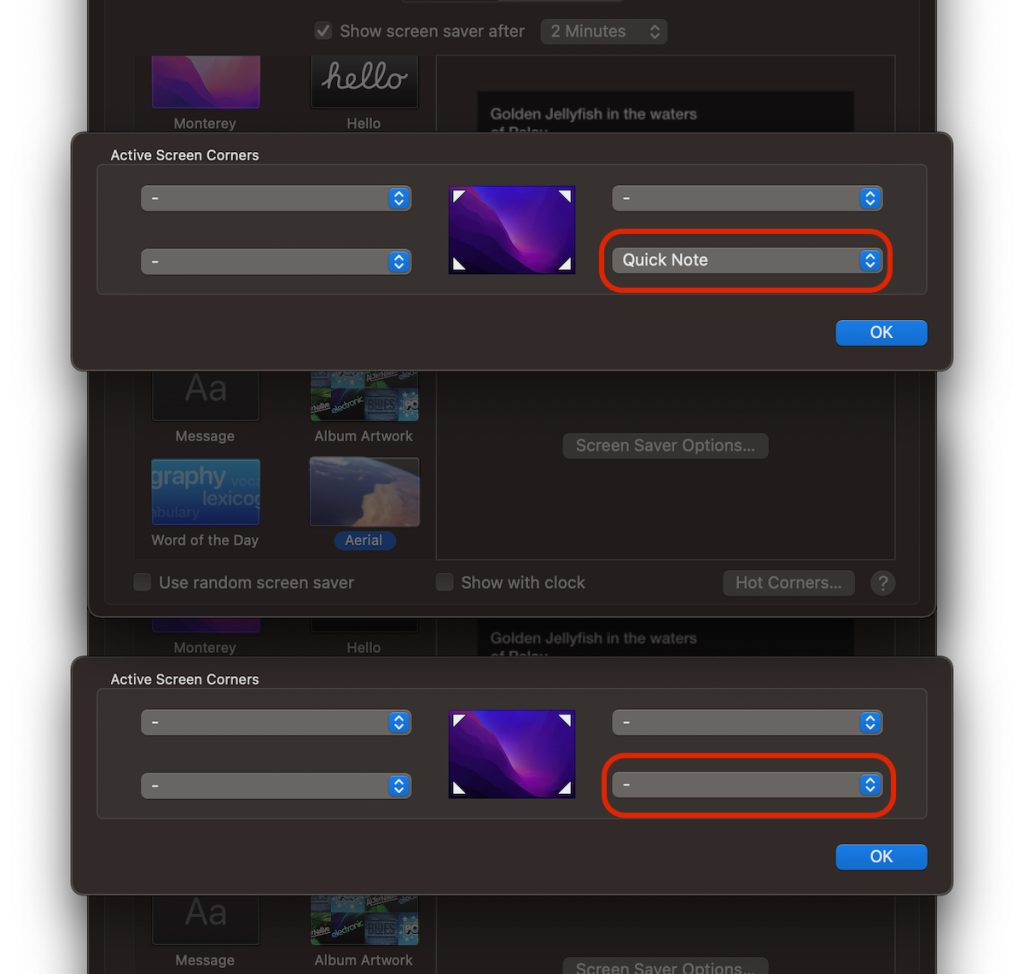
3. Click "OK" to save the changes.
If we want to keep this shortcut for quick notes or for another action supported by Hot Corners, we can choose that his action takes place at the crossing of the cursor combined with the pressing of a key. Command, Alt, Options, Shift …
Thus we can choose that the Quick Note application will not open when we cross the cursor through the lower right corner of the screen, unless at the same time we hold and the Command key.
How do we add a key or combination of shortcut keys for Hot Corners
To do this, we also go to "Hot Corners", and when we open the selection list of shares we press and the key we want in combination for active screen corners. "Command" in our example below.
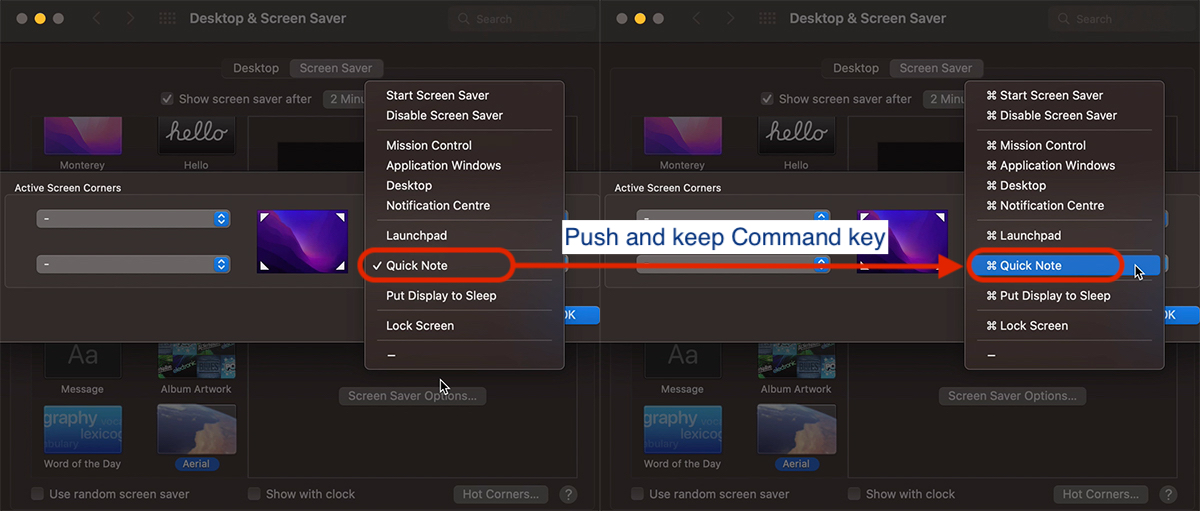
We can choose combinations of two or three keys that pressed to work as a shortcut for "hot corners".
A very important detail. Shortcut chosen key must be pressed and kept pressed on it before reaching with the cursor in the active corner of the screen.





































Excellent suggestion.
I wonder why put this function of an active corner of default.
Maybe because it wouldn't be any ca ** ta nobody?
THANK YOU VERY MUCH! It was wildly infuriated when these notes forever popped up! Yours helped yours, thank you very much