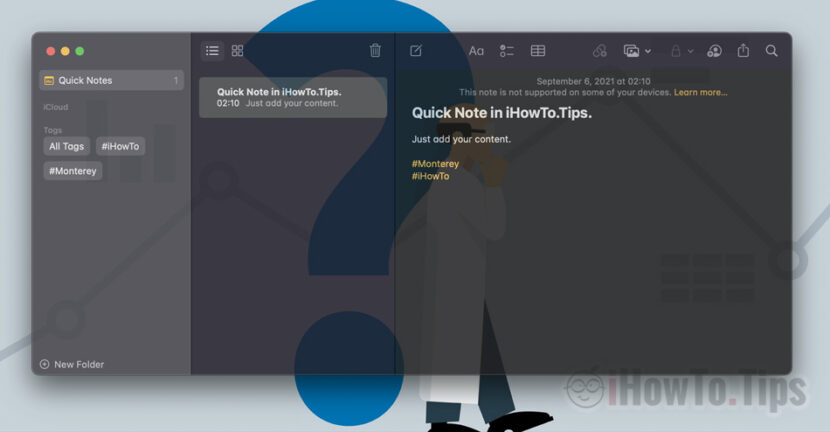

The native application Notes the MacOS it is clear that it does not even remotely compare with Evernote, OneNote or other similar applications that are very complex and offer many options.
Notes however, it is characterized by simplicity, almost non-existent consumption of resources sync notes between iPhone, Mac and iPad it is done almost in real time.
Apple not left behind this application, and on macOS Monterey brings it a little closer to what a productivity application should mean, in which to keep important notes from projects, lines of code and other elements to be displayed in a more legible way than at present.
Table of Contents
Notes in macOS Monterey
1. Tags
Until now, the only way to sort the notes in the Notes application was the folders displayed in the bar on the left side. There are many situations when a note could be included in several "categories" / folders, so that we can find it faster. This is impossible. That is, a note from the Notes application cannot be part of several folders.
The new option "Tags" brings us a new form of organizing notes with the help of tags. For example in notes we can use #Monterey, #Whatever. These tags are immediately assigned to the note and will be present in the bar on the left side under the folders. Thus, when we access a tag, we will have quick access to all the notes with that tag.
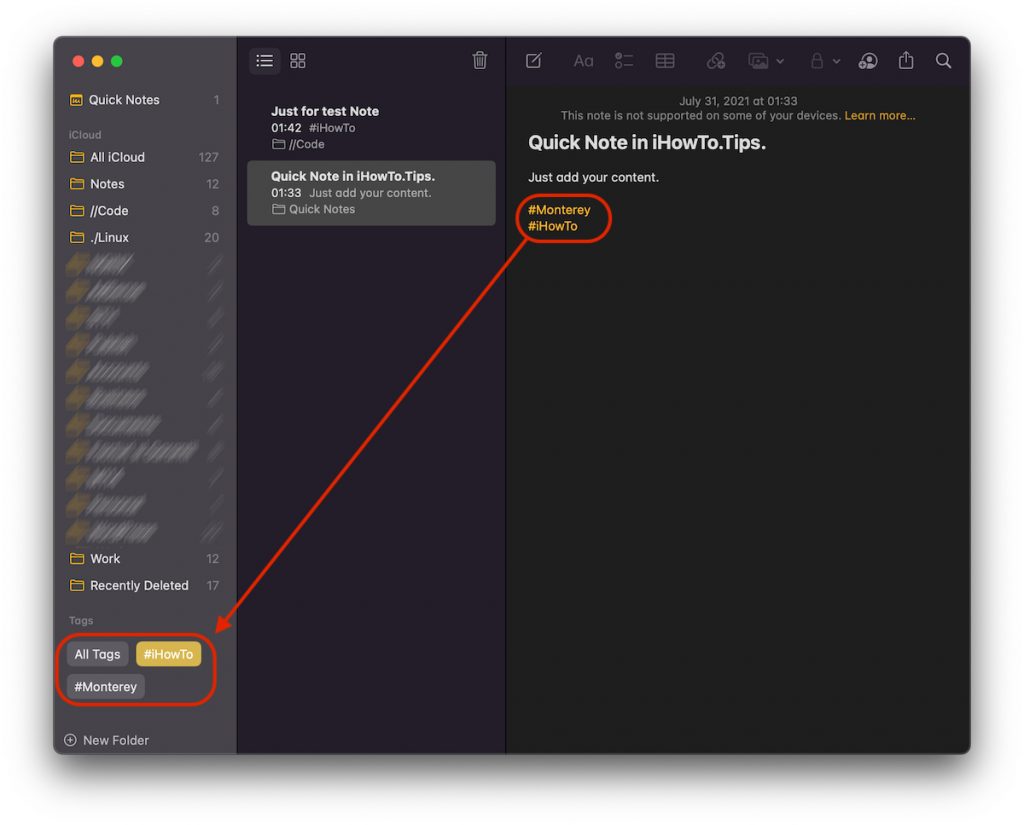
For me, it is a simpler and faster sorting option, than organizing the notes from Notes into folders.
2. Quick Note in Hot Corners
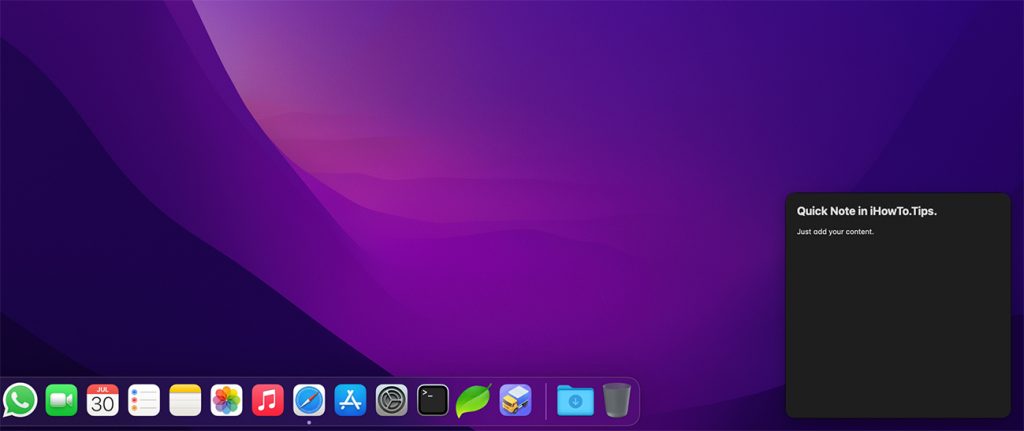
Another novelty of the Notes application on macOS Monterey is the option "Quick Note", through which Mac users can quickly add notes by simply pressing the key combination (shortcut) Fn + Q or moving the cursor to the lower right corner of the screen. In "Hot Corners“.
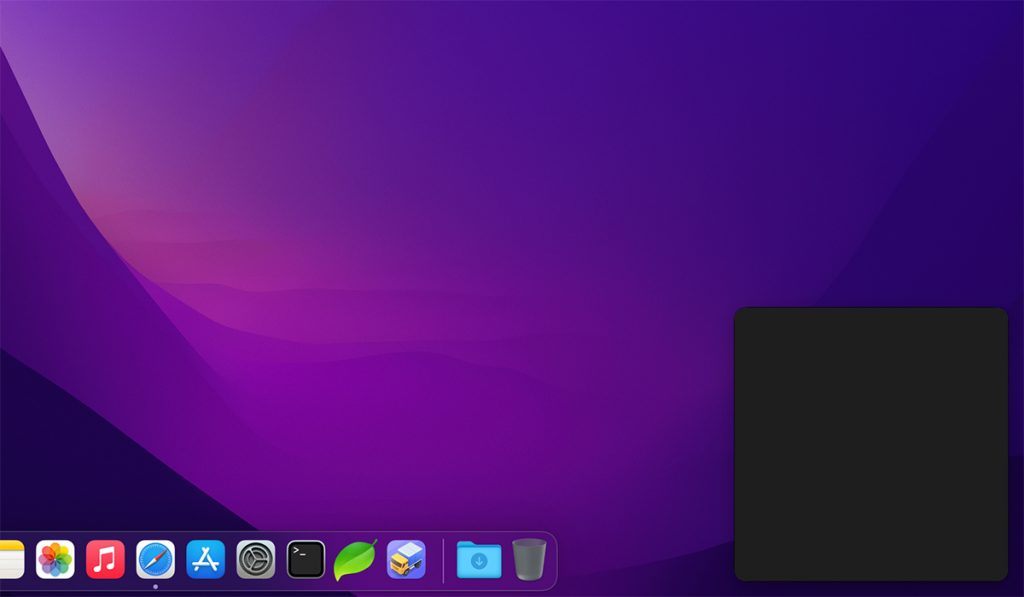
The text added in Quick Note it will be saved in real time and can be found in the Notes application in a dedicated category. Quick Note.
3. Notes Options
In addition to the options from the old version, there are new options for Quick Note and notifications in case we are mentioned in a shared note.
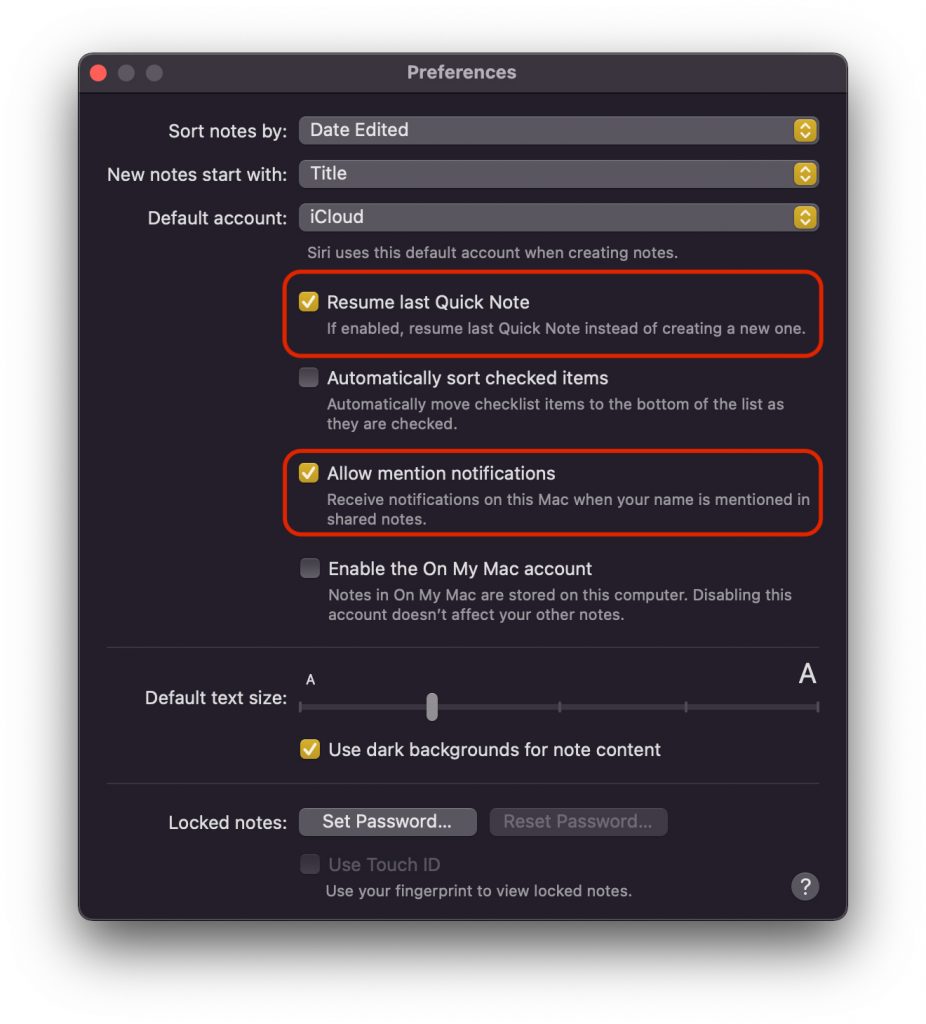
Resume last Quick Note
When we access Quick Note, we have the opportunity to choose whether to open a new note or to continue with the notes from the previous one.
Allow mention notifications
This option allows us to receive notifications when our name is mentioned in a shared note. It is not necessarily related to Quick Notes, it is a very useful option in the development of the application. Especially for team work.
I hope that Apple will develop this application even more over time and that it will become a real alternative to OneNote and Evernote.





































Question, how do I remove the option for quick notes to appear in the lower right area, it is uncomfortable when minimizing a video.
Greetings and thank you very much.
Hello,
Go to “System Preferences” → “Desktop & Screen Saver” → “Screen Saver” → “Hot Corners”. Just select “-” from right bottom corner.