
iOS offers many content sharing solutions. From photos, documents, files stored in iCloud and to the visited web pages, all can be divided with friends.
If we want to show someone only a part of a web page which I visited, in this scenario, a screenshot of the web page Open is simple to achieve. By the classic method of screenshot will be captured by default only the visible side on the screen. If, however, the content we want to show includes part of the screen, then we will need a Complete Screeshot of the web page, from which to cut (crop) only the part that interests us.
How do we screenshot on a full web page on iPhone or iPad (Take a Full Web Page Screenshot)
1. iOS 13, but few know about this option. So you have to have at least iOS 13 / Ipados 13 or a newer version installed on iPhone / iPad, to access this option.
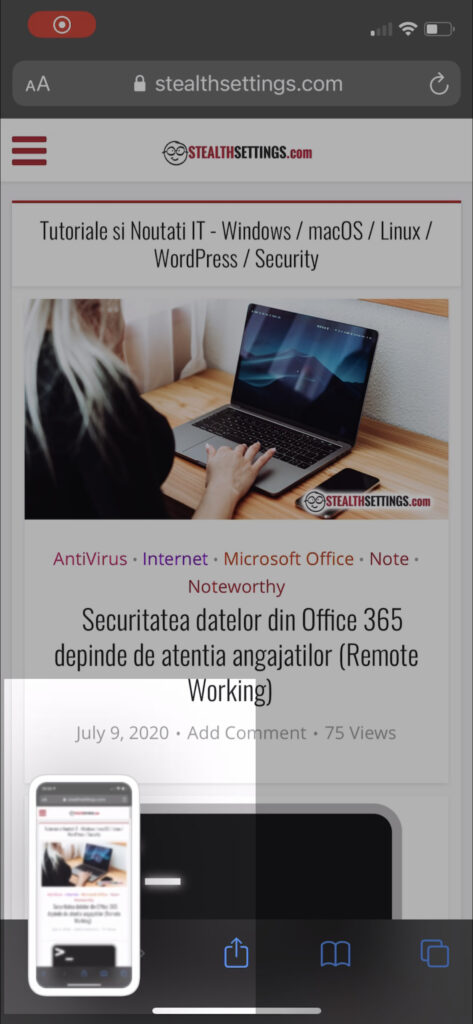
2. Access a web page with safari and press the buttons simultaneously Sleep and Volume Up to capture the image on the screen.
Press to open the captured picture from the left-hand corner of the screen.
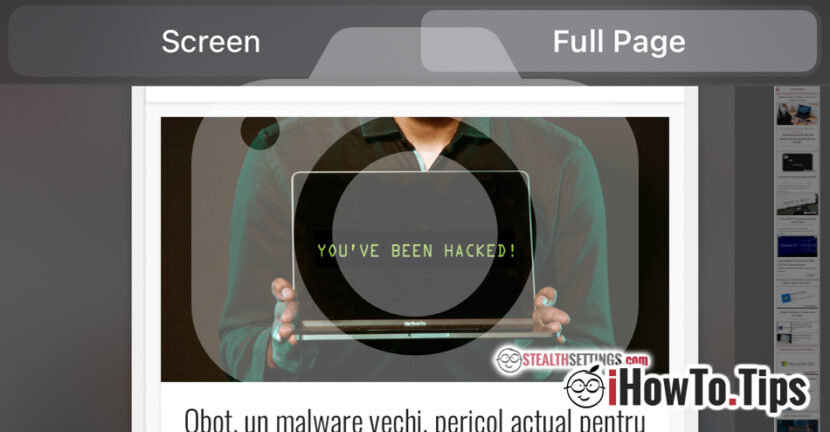
3. The photo editor will open, where you have more options for editing the captured image (Screenshot), including "Full Page", At the top. Select" full page ", then use the image navigation and editing tools, then export the final result.
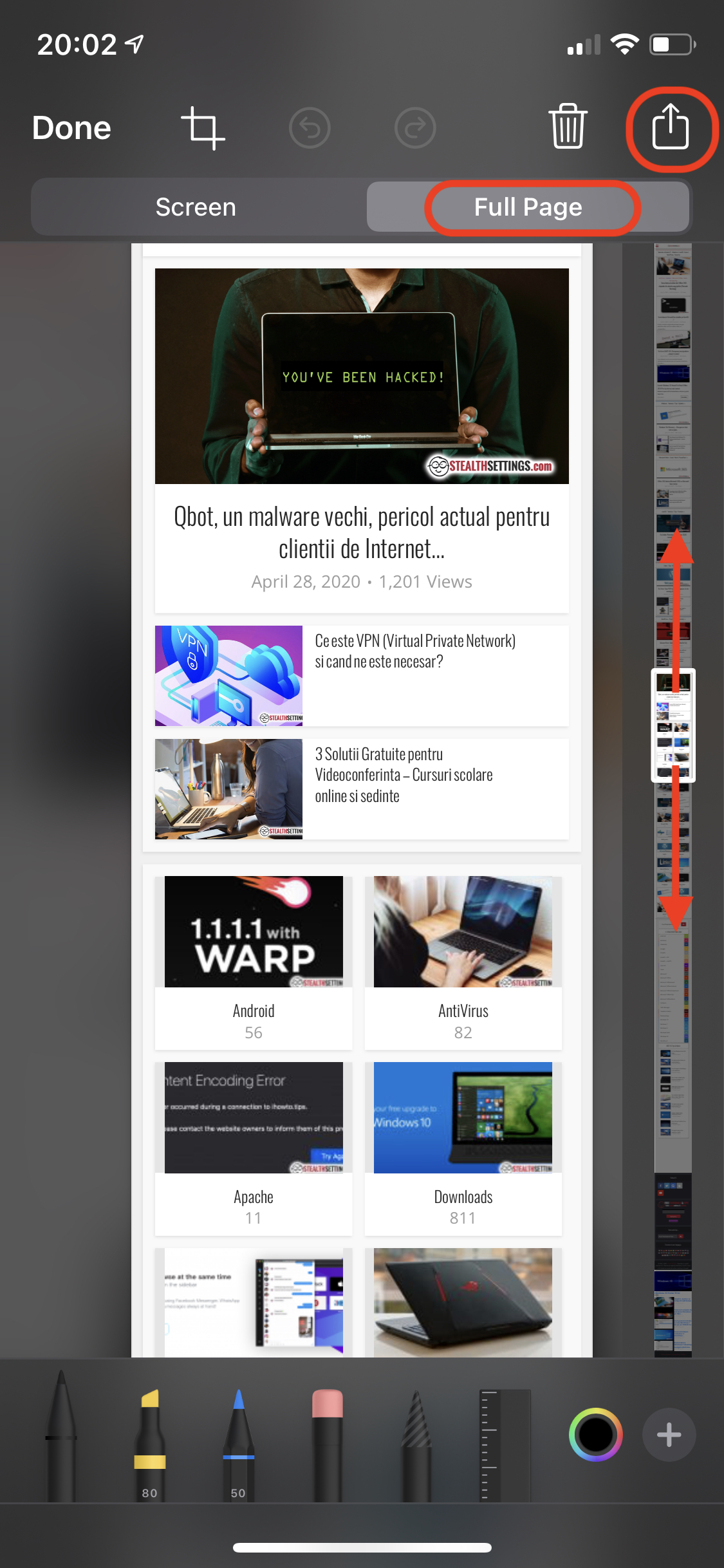
You can do the same thing on iPad cu Ipados 13 to make screenshot on the entire web page visited.

If you choose to save the entire web page, it can be saved or shared in PDF format.
This option is only available if the web page is accessed with safari. The "Full Page" option is not available on Chrome, Firefox, Opera or other internet browser installed on iPhone / iPad.
*This option works very well on iOS 14.