
If you haven't had the opportunity to test or work with a device Magic Mouse or Magic Trackpad, you'd be tempted to say that the mouse is the best choice. Especially if you haven't been a Mac or MacBook user before.
So this article is very helpful especially for new Mac users or MacBook Pro users who are still undecided whether to use Magic Mouse or Magic Trackpad.
Table of Contents
Magic Mouse or Magic Trackpad? Tactile gestures and options
New MacBook owners are tempted to make their first peripheral purchase a Magic Mouse. This is despite the fact that the built-in trackpad on every MacBook offers a lot of options and is extremely easy to use. It is incomparably more reliable, customizable and performs many more operations than the classic touchpad present on other companies' laptops, mostly used with Windows operating systems.
Magic Trackpad : Options and functionality
Along with the Magic Trackpad peripheral device, we can also include the built-in trackpad on the entire range of MacBook laptops.
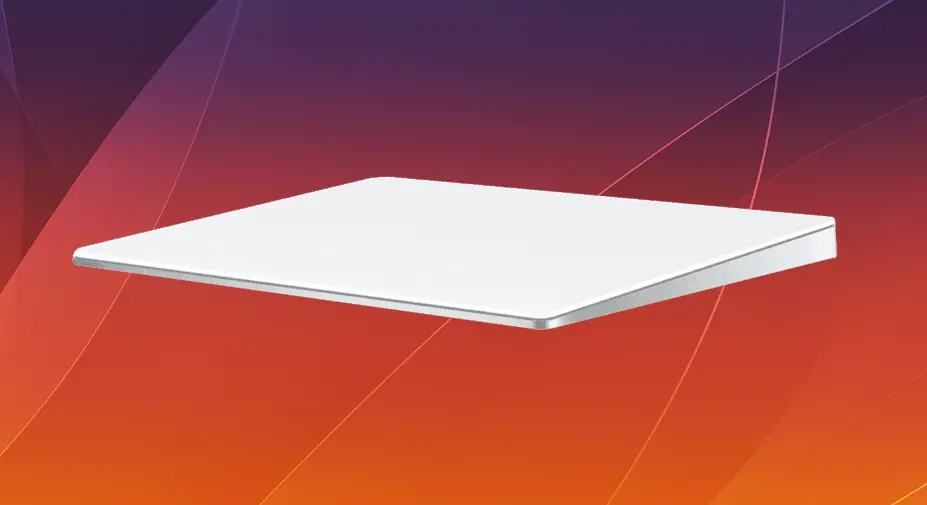
Magic Trackpad 3 support the same gestures Multi-Touch, Force Touch identical to MacBook trackpads, and the surface of 16.0 cm x 11.49 cm makes them extremely useful in any operation that involves manipulating the cursor.
The trackpad can be configured and customized according to the user's preferences, including adjusting the sensitivity of the gestures or adding custom gestures through the settings in the operating system.
The trackpad options are divided into three categories: Point & Click, Scroll & Zoom, Gestures.
Trackpad : Point and Click
Through these options, the user can set the speed of the cursor (trackpad speed), the level of pressure placed on the trackpad to execute click, Force Click and haptic response (vibration), right-click activation by pressing with two fingers or on one of the bottom corners of the trackpad.
I would dwell a bit on the haptic response. The MacBook Trackpad / Magic Trackpad uses haptic feedback to simulate the sensation of pressing on its surface. It provides a very realistic and very pleasant tactile experience. The user really has the feeling that somewhere under the trackpad, something mechanical clicks when pressed.
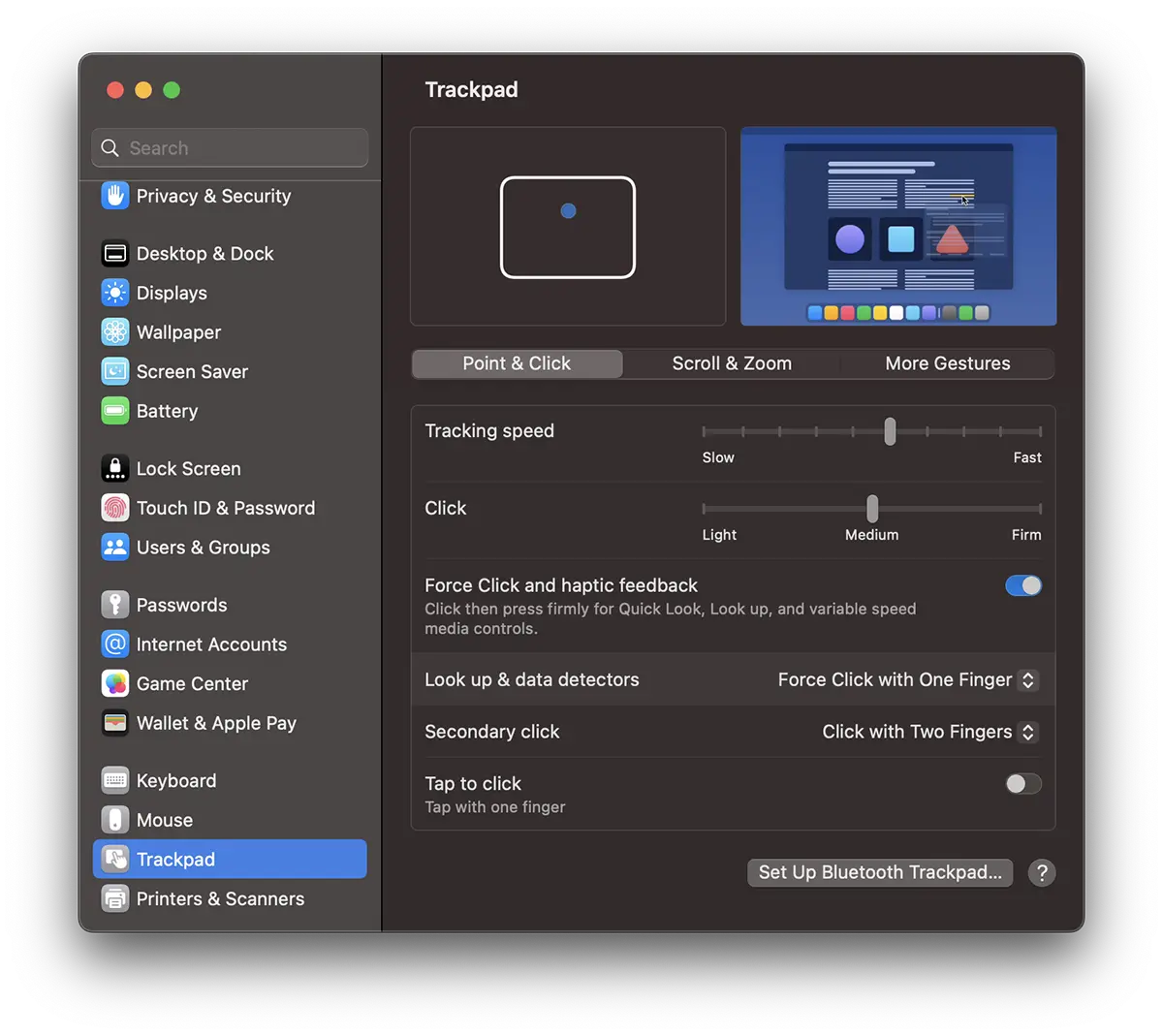
By "Force Touch" the user can access additional functions by applying different levels of pressure on the trackpad surface. For example, the function "Look up” will activate when the user presses harder on the trackpad.
Enabling the “Tap to click" disables the need to apply pressure with your finger and the haptic response to the click. Basically it will become something similar to the touchpad.
We can say that all these settings already offer more options than a classic mouse for Windows or Magic Mouse.
Trackpad : Scroll & Zoom
Zoom and scroll options are multiple and customizable. From changing the scroll direction, which by default macOS has it opposite to Windows, to gestures of “Zoom In”, “Zoom Out”, “Smart Zoom” or "Rotate“.
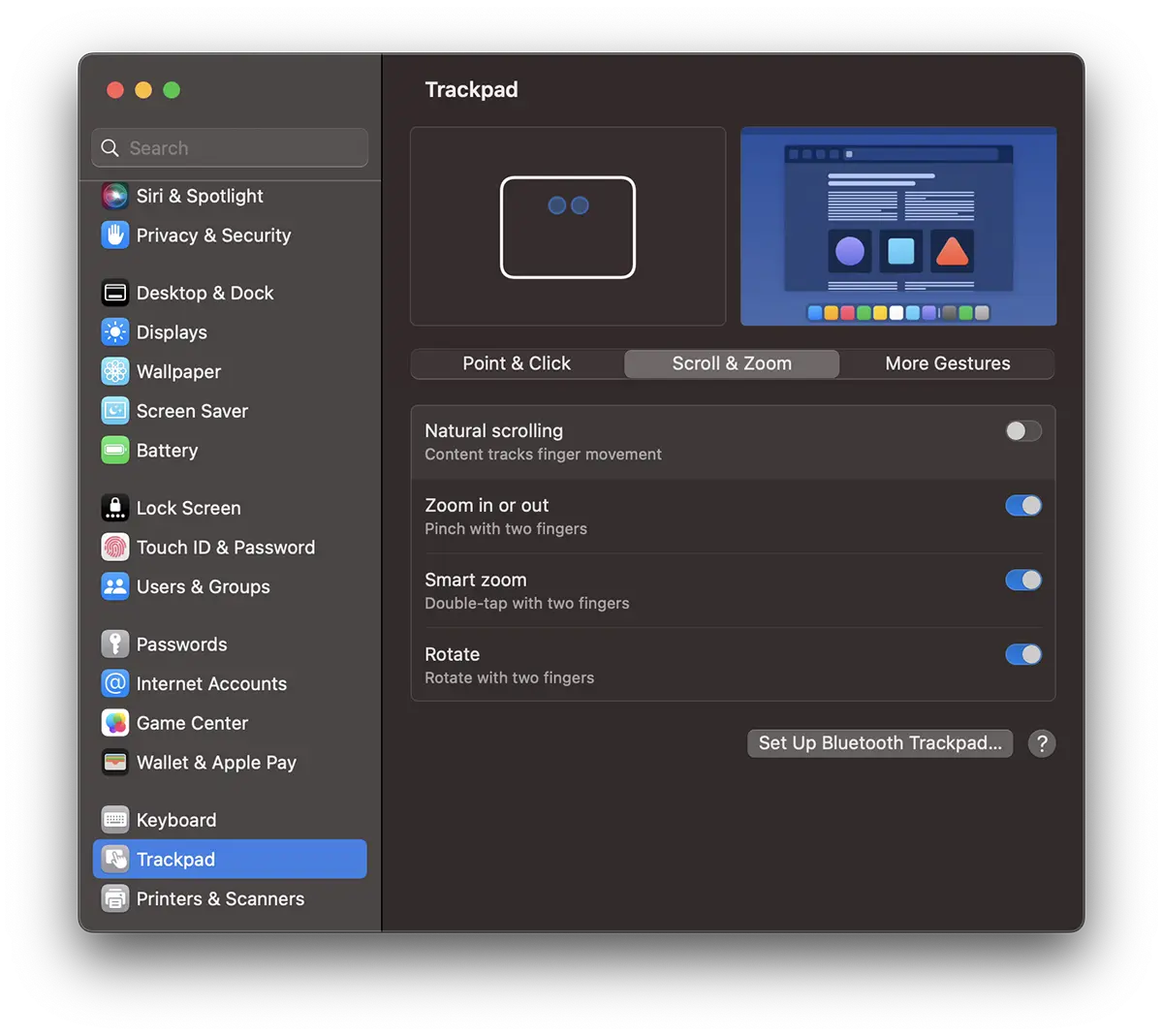
What are all these zoom and rotate functions for? It is very simple. For example, you can double-tap the trackpad with two fingers to zoom in on a picture or web page. Zooming can also be done on pictures or in other apps that support gestures. By touching the trackpad with two fingers and moving them away or closer, you will "zoom out" / "zoom in".
With the rotate function you can open a picture in the application Preview, then rotate it with two fingers in the desired direction.
If you are still undecided and don't know whether to choose Magic Mouse or Magic Trackpad, the trackpad's extended gesture support will help you.
Trackpad : More Gestures
If the gestures above weren't enough Trackpad offers extensive gesture support, allowing users to perform and customize advanced gestures, providing a smooth and efficient navigation experience.
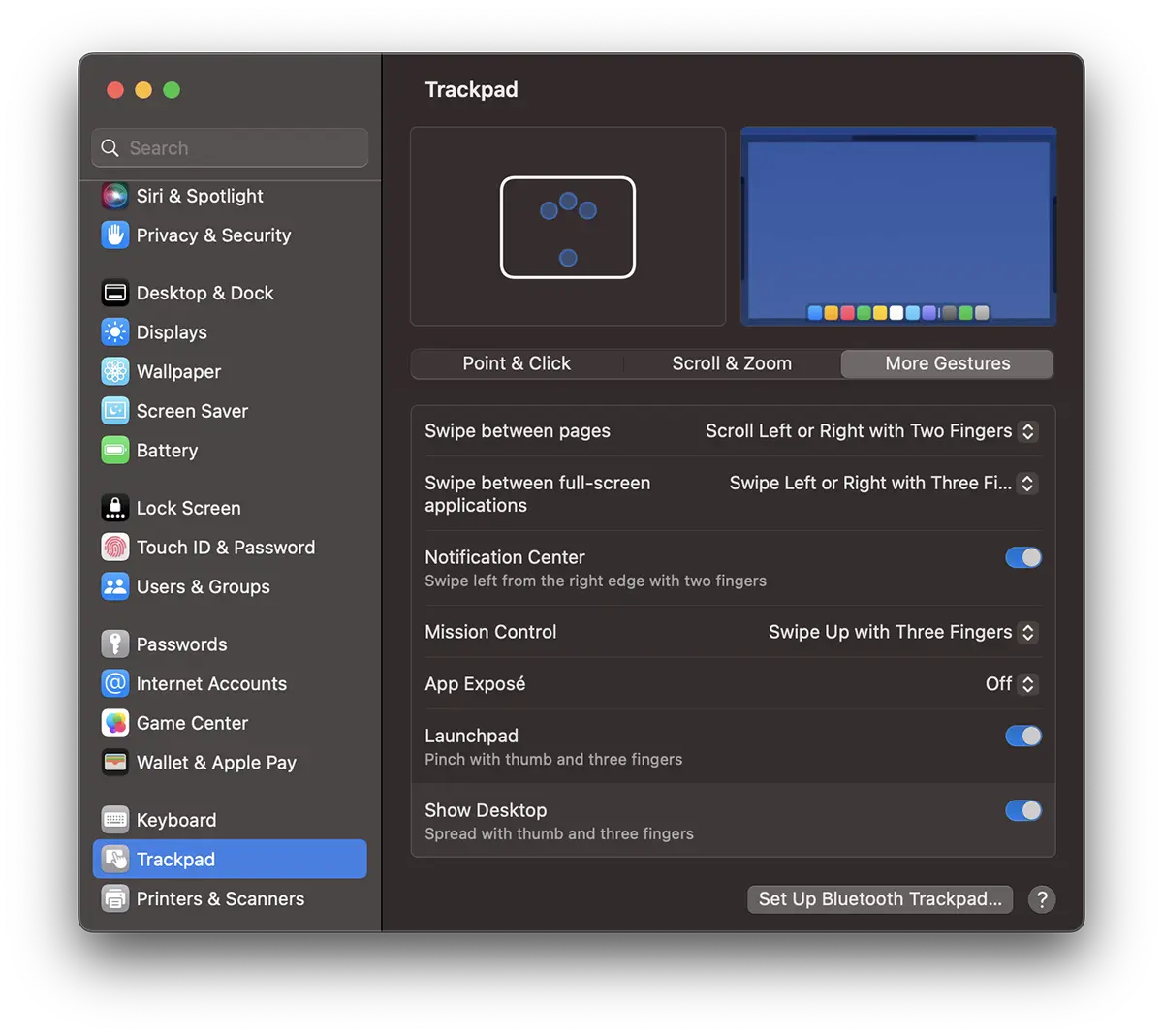
There are multiple gesture options here to access Notification Center, Mission Control, App Exposé or Launchpad. As can be seen in the options panel, many of these are customizable.
With all these functions and features, it's already very difficult to ask: "Magic Mouse or Magic Trackpad?"
Magic Mouse : Options and functionality
From intuitive gestures to its outstanding performance, Magic Mouse redefines the experience of using a mouse, especially on the Apple devices it is designed for.
The elegant design is defined by a glossy Multi-Touch surface that makes the Magic Mouse pleasant to the touch, but also very useful in operating on macOS systems.
Allows users to perform intuitive gestures to perform various actions such as scrolling pages, zooming, accessing applications and more.
The operation and control options of Magic Mouse are divided into two categories: "Point & Click” and “Gesture“.
Magic Mouse : Point & Click
Pe lângă opțiunea de smart zoom care poate fi activat la dublă atingere cu un deget pe suprafața touch a Magic Mouse, alte opțiuni notabile nu prea găsim la “Point & Click”.
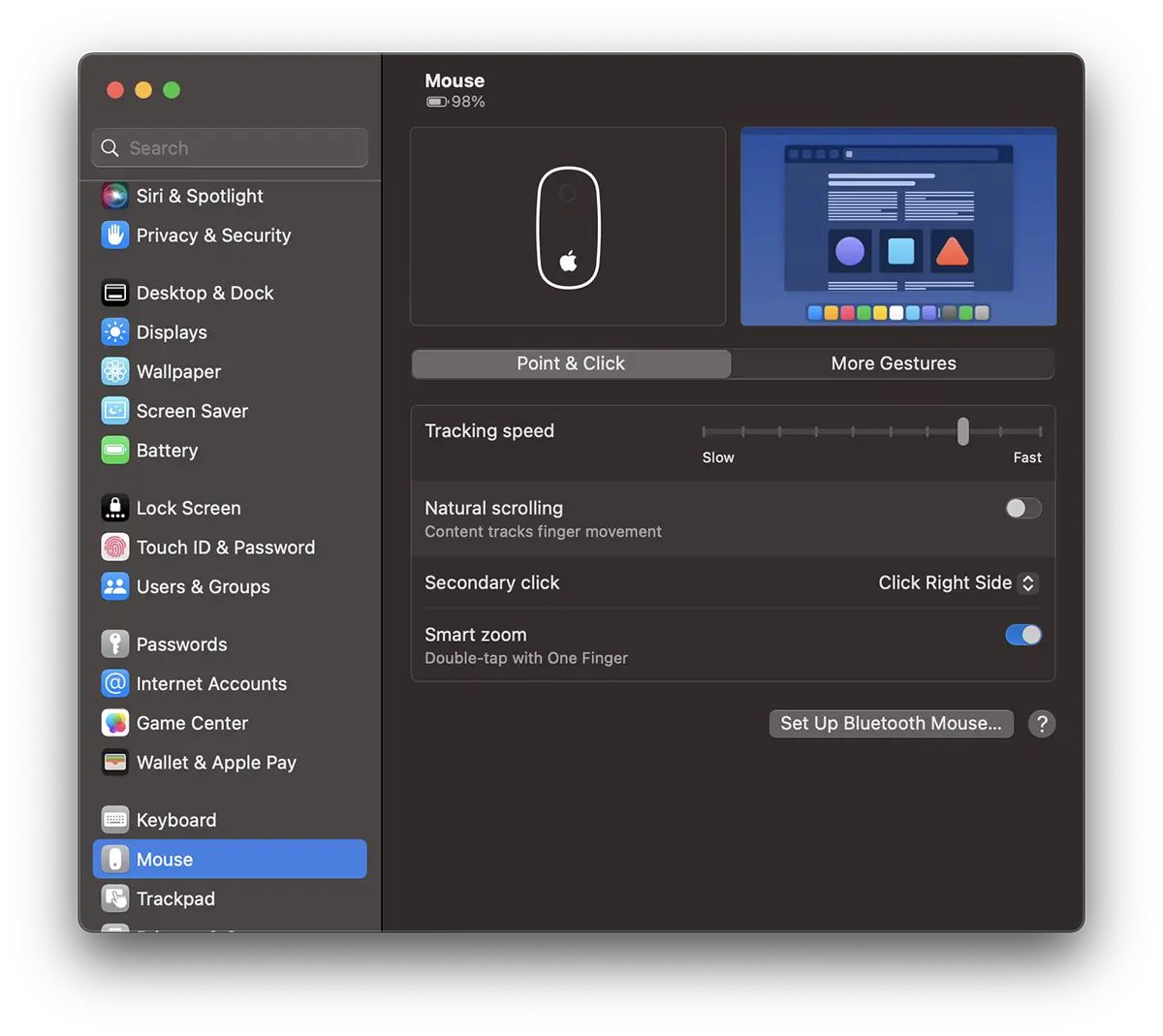
What is normal for Windows users, for Mac users, enabling right-click is optional. I don't understand why Apple doesn't enable by default "Secondary click“.
Magic Mouse : More Gestures
And in terms of gestures, the Magic Mouse is much less than the trackpad or Magic Trackpad.
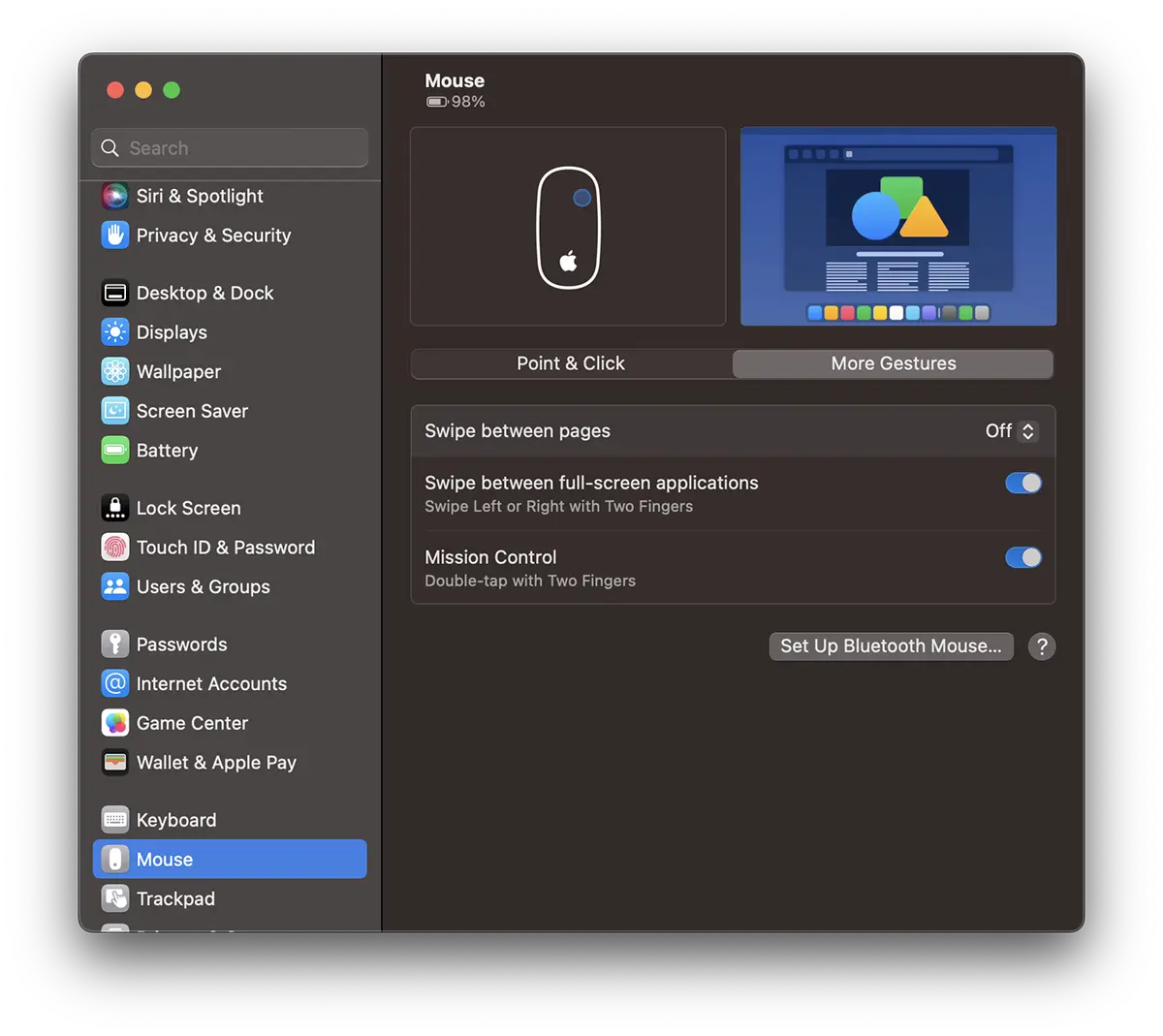
Provides quick two-finger swipe access between open full-screen apps and to “Mission Control” by double tapping with two fingers on the touch surface (ie anywhere on the mouse surface).
Related:
- How we set the Scroll Directorate and the speed of the Magic Mouse / Trackpad cursor on iPad Pro
- Apple Magic Mouse vs. Magic Mouse 2 – Diferente si Compatibilitate
- Automatically disable trackpad when Mouse or Trackpad Wireless is connected to MacBook
If you don't know what to choose, Magic Mouse or Magic Trackpad (or MacBook Trackpad), I hope this article helped you in making a decision.
Personally, I love using Magic Mouse on all devices. iMac, MacBook, iPad, but I am aware that this has more to do with my habit than efficiency. The trackpad offers many more options that if you're a MacBook user... you have them at your fingertips.




































