

Firewall and Stealth Mode on Mac are additional security measures prevention of cyber attacks from inside the local network (LAN) or from the Internet. With the help of the firewall Internet access can be blocked for services, applications or programmer. macOS Firewall Security.
From 2013 until today I have not used one software antivirus or firewall for macOS. Although I surf almost daily on dozens of web pages, it has never happened that I was an achieved goal of hackers or to infect the Mac. To a large extent, this is due to the internal protection system of macOS, which comes with an integrated firewall, prevention solutions for the installation and running of suspicious applications. MacOS Security.
Table of Contents
How to activate Firewall and Stealth Mode on Mac
By default, the firewall is not activated when macOS is installed, but this connection filtering system can be turned on by each user, following a few simple steps from tutorial below:
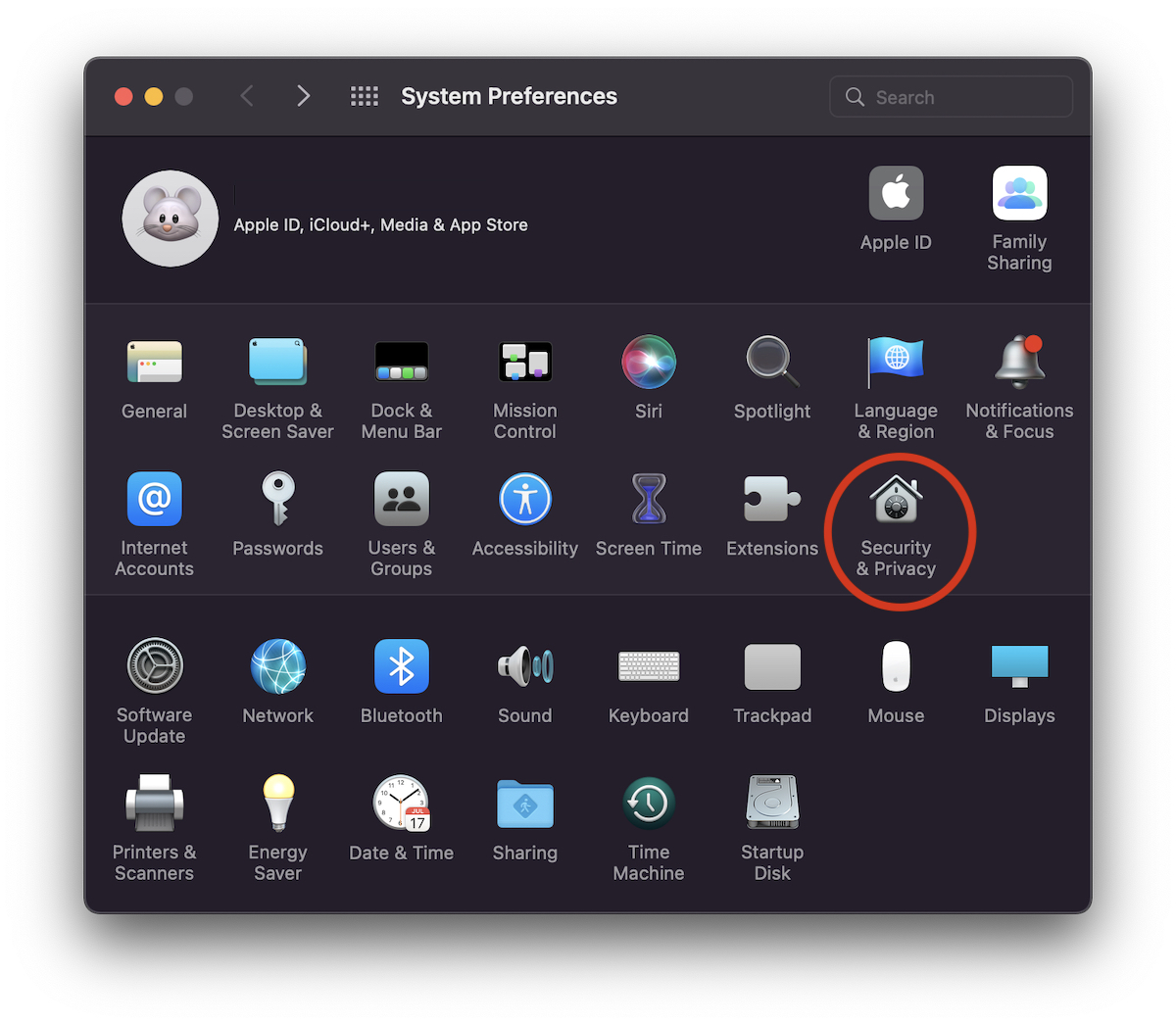
1. We go to "System Preferences" the "Security & Privacy“.
2. In “System & Privacy"let's go to the tab"Firewall", then click on the lock in the lower left corner to access the sensitive macOS security options.
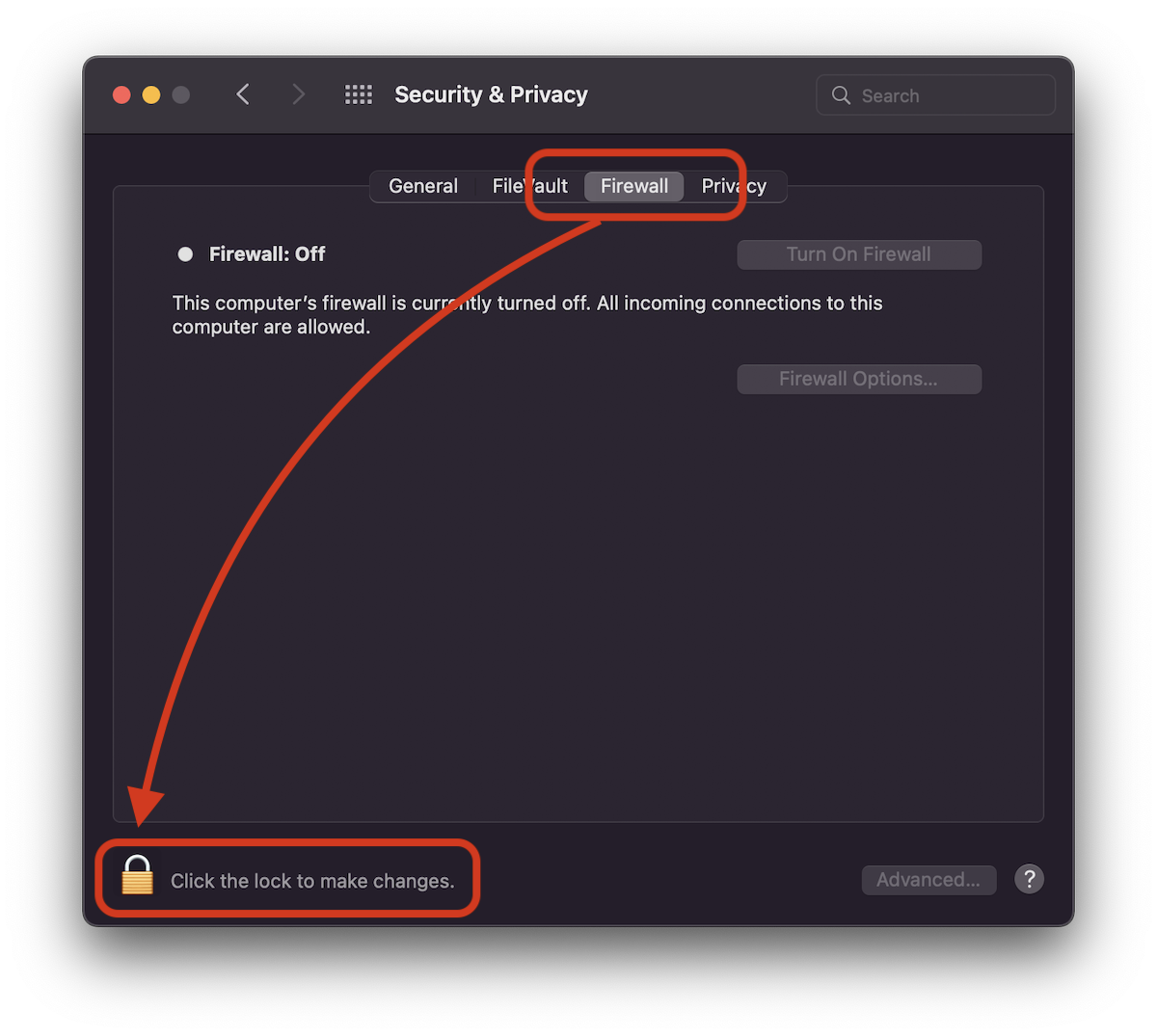
That's a security addition to macOS. No changes can be made security settings or changes that may affect sensitive data, if not entered administrator parole to macOS.
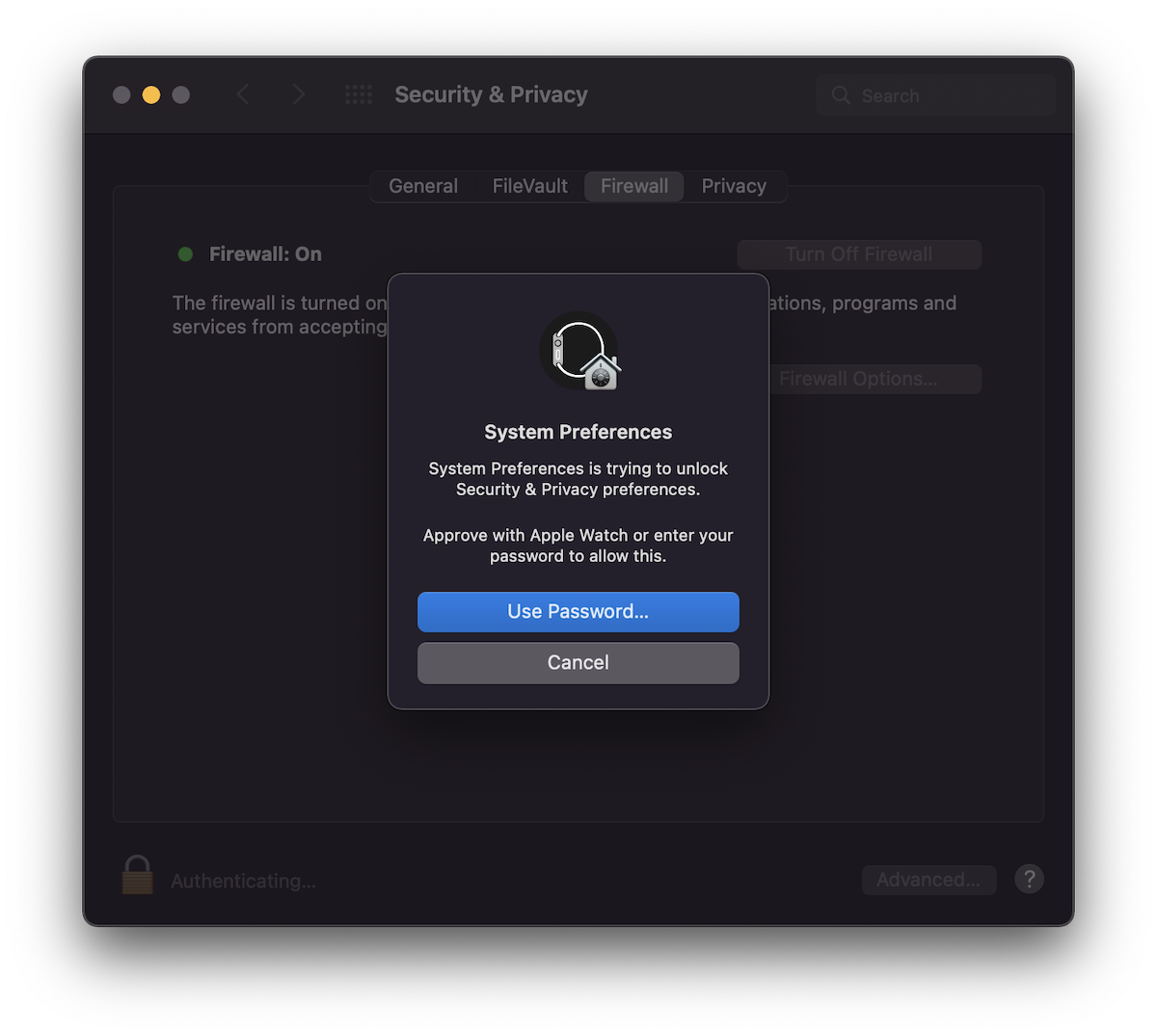
3. Click on the lock, then enter system nonsense or if we have one Apple Watch connected to the same account icloud and set to unlock macOS, press the side button twice Al Apple Watch.
4. Click pe “Turn on Firewall“.
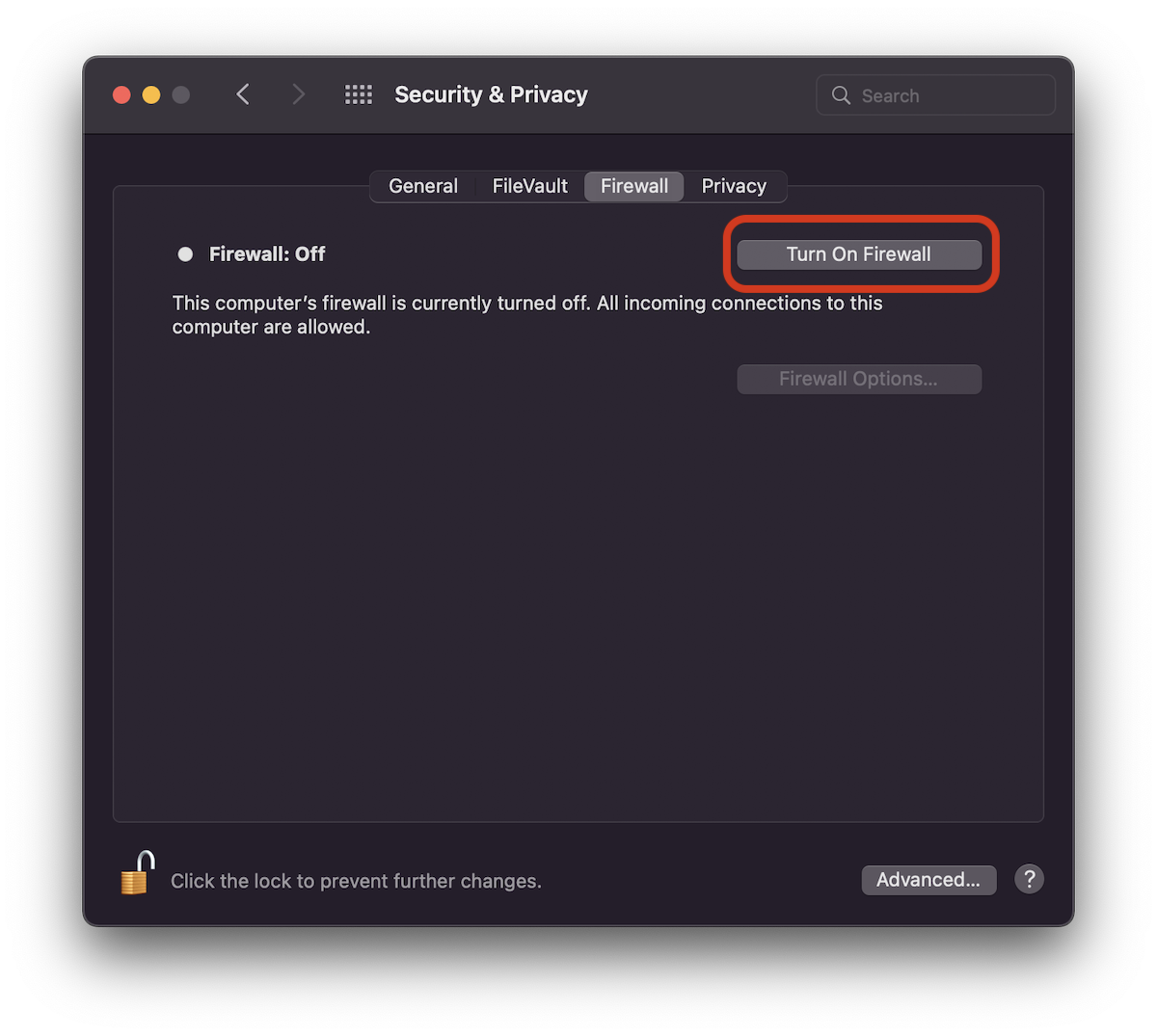
From this moment, firewall is enabled (On), and users can choose which applications, services or programs are allowed to connect to the computer. Incoming connections can be filtered. For example, we can prohibit all incoming connections of a program that we do not want to have access to the Internet.
These filters can be set from "Firewall Options".
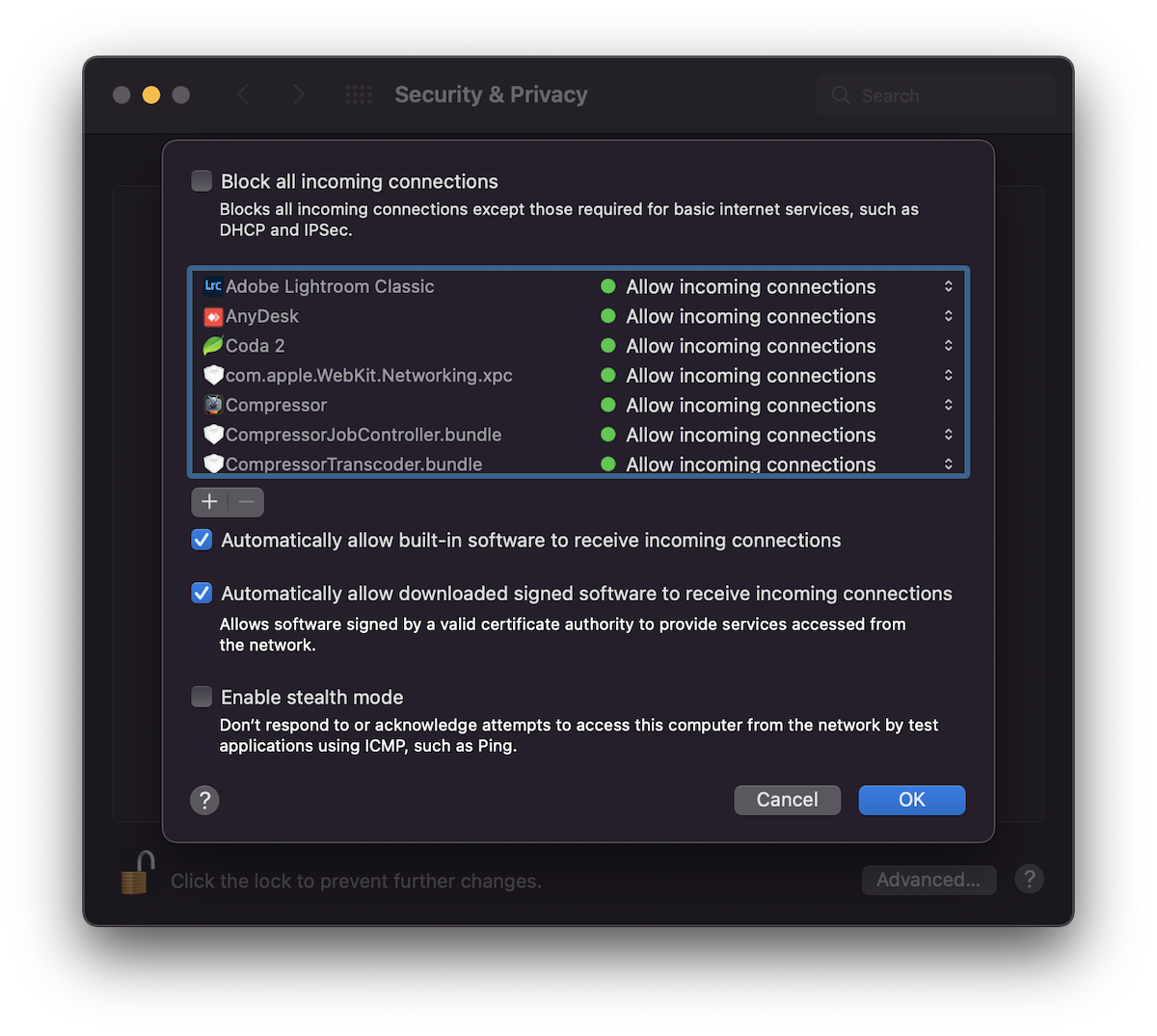
What is Stealth Mode in Firewall settings on macOS? Enable stealth mode
Invisible mode (stealth mode) is very useful when you need extra security, especially when you are connected with your MacBook to Wi-Fi networks other than the trusted ones from the office or home.
"Stealth mode” will cause the Mac to not respond to type queries ICMP (ping) al unauthorized applications. Thus, it will not reveal its existence in the network and will remain invisible.
More precisely, with this option activated, the Mac will no longer respond to Ping unless it is given by authorized applications. Firewall and Stealth Mode on Mac.
All you have to do to activate this feature on macOS, is to check the "Enable stealth mode" option in "Firewall Options". Click "Ok" to save the changes.




































