
In two oldest have shown As can be changed from the default location to save the automatic screenshotto the (here) and How can we change the default .png format in another image format (.jpg, .tiff, .pdf, .gif) for the "Screen Shot" files (here) made on macOS.
Mac users know that compared to Windows, Apple Screenshot laptops and computers are saved much easier and custom keyboard combinations can be established (Keyboard shortcuts) depending on what we want to capture and how we want to save the capture. These settings can be found in "System Preferences" → "Keyboard" → "Screenshots".
From here we can decide what combination of keys to use for the automatic salvation on the hardship of a screen or for saving in the clipboard.
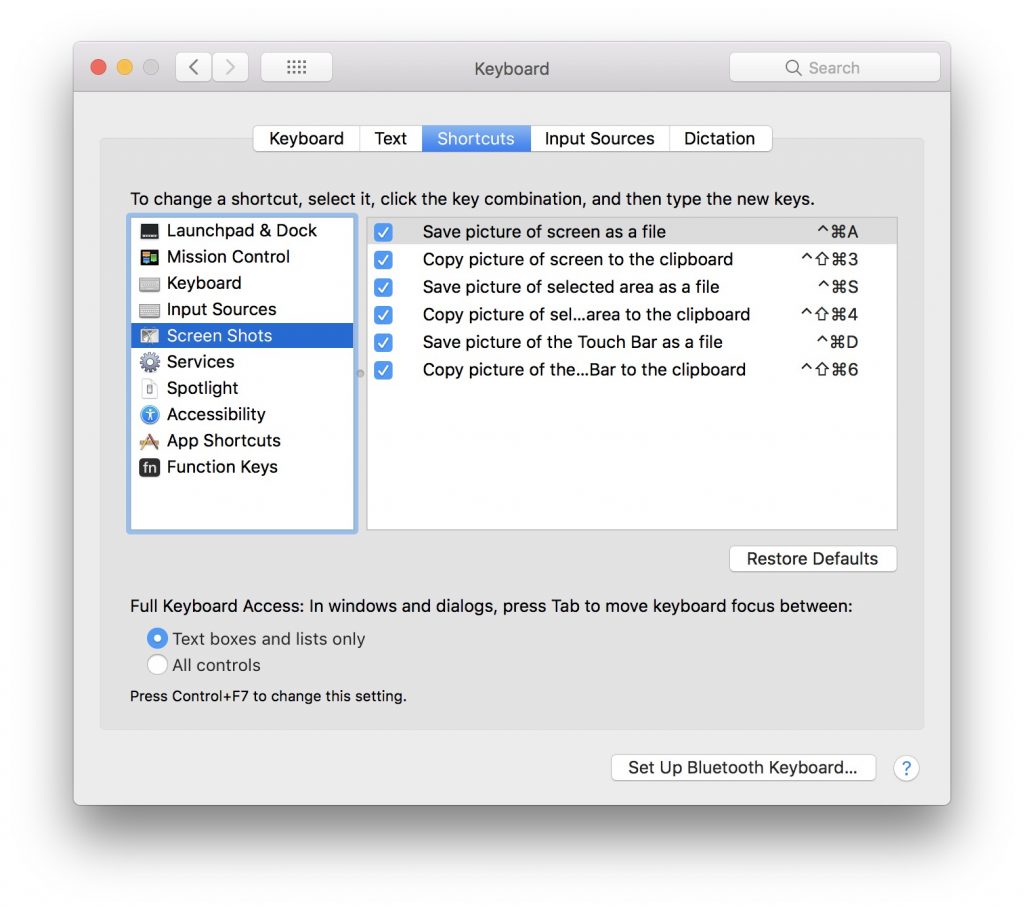
The newer MacBook Pro models provide support for screenshot and touch bar. From here the user can decide where to save the screen head and what portion of the screen to be surprised in the capture.

Both screenshots saved by key combination and those made with the function of Touch Bar, is saved on the hard in the location chosen by us (or on the desktop) with a default name "Screen Shot -data-“.
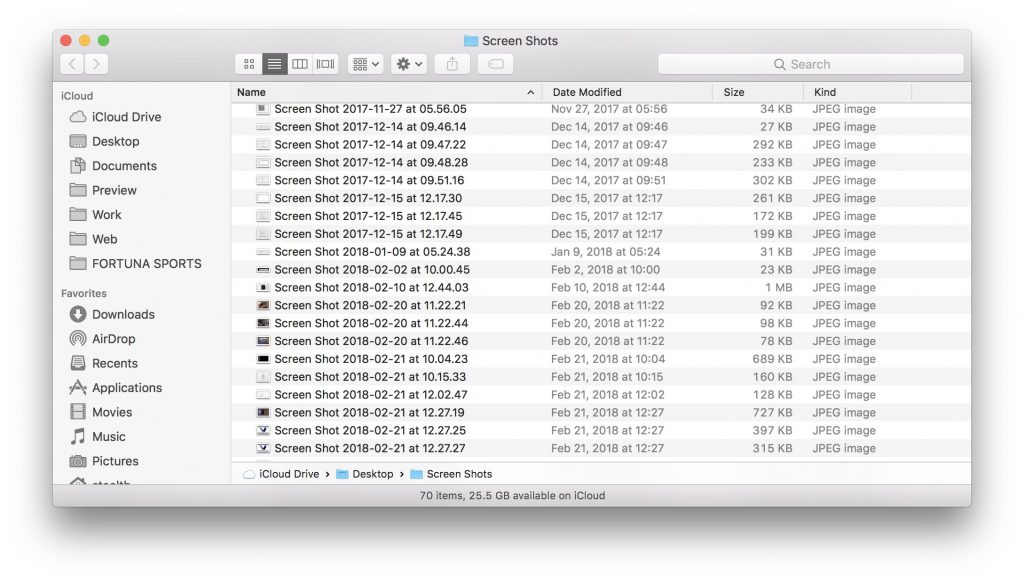
Yes, we want the name of the saved file to be other than "Screen Shot" we can change it using a simple control line in the terminal.
How we change the default name of the "Screen Shot" files on Macos
1. We open "terminal" and execute the command line:
defaults write com.apple.screencapture name "iHowTo.Tips"
Replace the name "ihowto.tips" with the one you want.
2. Restore MAC interface with command line:
killall SystemUIServer
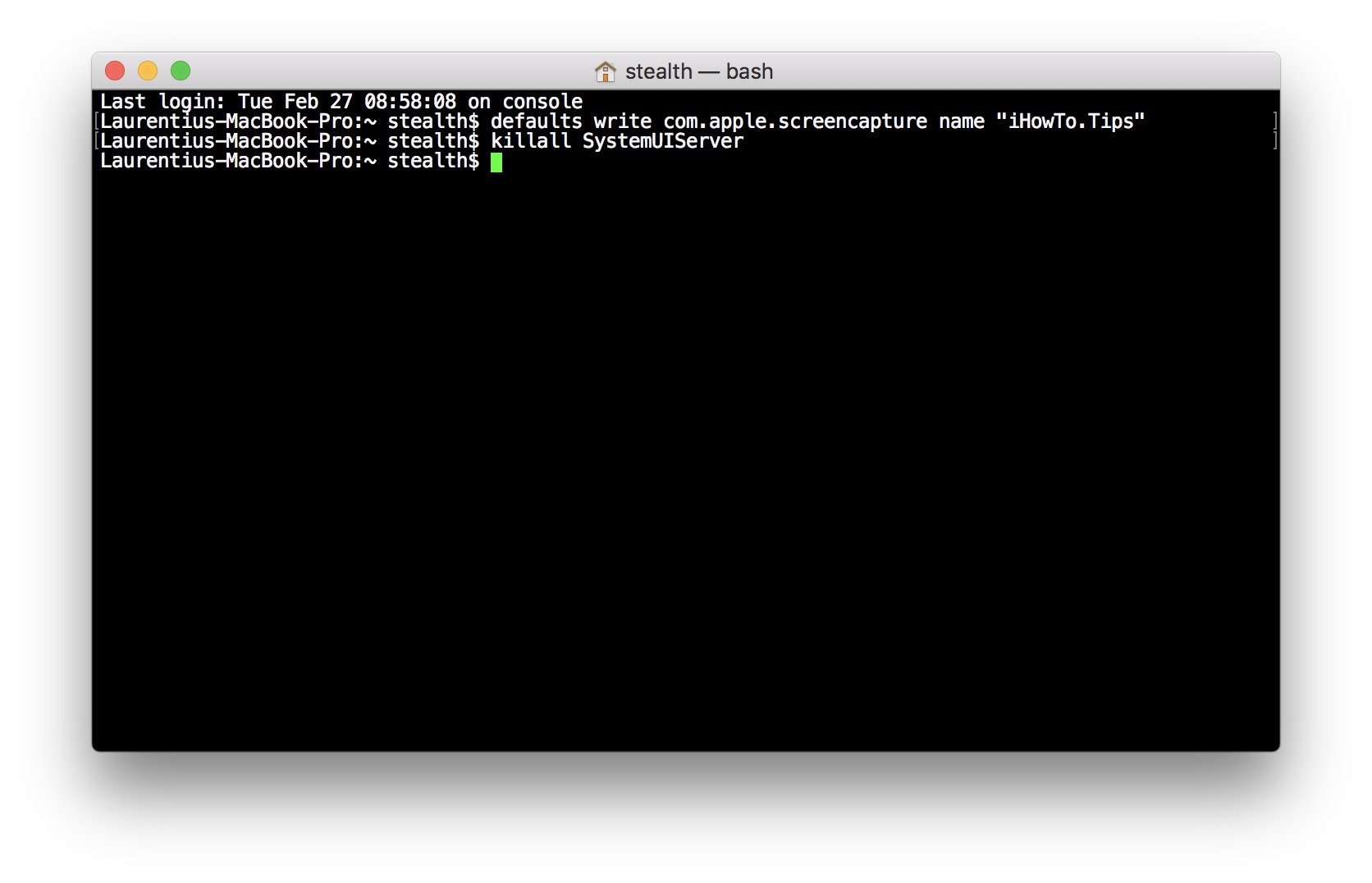
The new screenshots will be saved with the file name of the form ”iHowTo.Tips 2018-02-27 at 10.48.20“.
To return to the initial settings it is easy to understand what needs to be done. Just put the name "Screen Shot" in the first order line.




































